
The Synera F2 Key product line: management
and two-factor authentication
General information
The Synera F2 Key is a product line of authentication tokens for web services operating via the FIDO2 protocol (CTAP2). The Synera F2 Key devices serve as a unified authenticator for protecting web service accounts using two-factor authentication (2FA).
This user guide provides information about the Synera F2 Key product line. It details device management procedures, including setting and changing the PIN-code, and performing a factory reset.
Supported web-services, operational systems, browsers
Web services
- Google;
- Apple ID;
- Microsoft.
Operational systems and browsers
Authentication methods
The Synera F2 Key devices support two authentication modes:
- Two-factor authentication (2FA) implemented via FIDO2 technology and requires entry of: Username, Password, and Synera PIN-code;
- One-factor authentication (passwordless authentication) implemented via FIDO2 technology and eliminates username/password entry. Account access requires only: the Synera F2 Key device and its PIN-code.
Software support for the Synera F2 Key devices is implemented by a combination of the operating system and browser. Desktop and mobile OS are supported:
-
MS Windows (10 and above)
-
Browser Two-factor authentication Passwordless authentication Edge MS (Chromium) Yes Yes Google Chrome Yes Yes Mozilla Firefox Yes Yes
-
Linux (Debian 10+, Ubuntu 18+, CentOS 7.8+)
-
Browser Two-factor authentication Passwordless authentication Google Chrome Yes Yes Firefox Yes Yes
-
macOS (10.4 and above)
-
Browser Two-factor authentication Passwordless authentication Safari Yes Yes Google Chrome Yes Yes Edge for MacOS Yes Yes - Apple ID does not support passwordless authentication mode.
-
Android (10 and above)
-
Browser Two-factor authentication Passwordless authentication Google Chrome 105+ Yes No Mozilla Firefox 91+ Yes No Samsung Internet browser 21+ Yes No - On Android OS, the Synera F2 Key works via the CTAP1 (U2F) protocol. The protocol does not support one-factor authentication.
-
iOS (14.5 and above )
-
Browser Two-factor authentication Passwordless authentication Safari Browser Yes Yes - Apple ID does not support passwordless authentication mode.
- To connect the Synera F2 Key to a device, a Lighting-to-USB Type-C adapter is needed.
- Before authentication, it is required to set the PIN-code.
-
iPadOS (14.5 and above )
-
Browser Two-factor authentication Passwordless authentication Safari Browser Yes Yes - Apple ID does not support passwordless authentication mode.
- Works on devices with USB Type-C interface (iPad Mini 6, iPad 11 Pro, etc.).
- Before authentication, it is required to set the PIN-code.
The Synera F2 Key device management
The Synera F2 Key device can be managed on Windows, macOS, and GNU/Linux operating systems.
The Synera F2 Key supports the following service operations:
- Setting a device PIN-code;
- Changing an existing device PIN-code;
- Device reset (in case of lockout).
PIN-code policy specifications:
- No default PIN-code is preconfigured;
- A set PIN-code can be changed but cannot be removed without resetting the device;
- PIN-code length must be between 4 and 63 characters;
- After 8 consecutive incorrect PIN-code entries, the device becomes blocked, requiring device reset.
Windows OS
-
Setting the Synera PIN-code
-
To set Sunera's PIN-code:
- Click Start → Settings.
- Navigate to Accounts → Sign-in options → Security Key.
- Click Manage.
- Follow the instructions in the system window and touch the touch-sensitive button when requested.
- Under Security Key PIN, click Set up.
- Enter the new PIN-code twice.
- Click OK.
As a result, the Synera PIN-code will be set.
-
Changing the Synera PIN-code
-
To change the Synera PIN-code:
- Click Start → Settings.
- Navigate to Accounts → Sign-in options → Security Key.
- Click Manage.
- Follow the instructions in the system window and touch the touch-sensitive button when requested.
- Under Security Key PIN, click Change.
- Enter the current PIN-code.
- Enter the new PIN-code twice.
- Click OK.
As a result, the Synera PIN-code will be changed.
-
Resetting the Synera
-
Resetting the Synera is necessary if the device is blocked. When resetting the Synera, all credentials are erased permanently and cannot be recovered.
To reset the Synera:
- Click Start → Settings.
- Navigate to Accounts → Sign-in options → Security Key.
- Click Manage.
- Follow the instructions in the system window and touch the touch-sensitive button when requested.
- In the Security key resetsection, click Reset.
- Click Continue.
- Follow the instructions in the system window: insert the device again and touch the touch-sensitive button when prompted.
The message Reset completed will appear. - Click Done.
As a result, the Synera will be reset.
macOS and GNU/Linux
-
Setting the Synera PIN-code
-
The Synera F2 Key management on macOS and GNU/Linux systems requires Google Chrome. The process is identical for both operating systems.
To set the Synera PIN-code:
- Open Google Chrome.
- Click and navigate to Settings.
- Navigate to Privacy and Security → Security → Manage security keys.
- Click Set PIN.
- Follow the system prompt:
- Insert the device;
- Touch the touch-sensitive button when requested.
- Enter the new PIN-code twice.
- Click Save.
- Click OK.
As a result, the Synera PIN-code will be set.
-
Changing the Synera PIN-code
-
To change the Synera PIN-code:
- Open Google Chrome.
- Click and navigate to Settings.
- Navigate to Privacy and Security → Security → Manage security keys.
- Click Change PIN.
- Follow the system prompt:
- Insert the device;
- Touch the touch-sensitive button when requested.
- Enter the current PIN.
- Enter the new PIN twice.
- Click Save.
- Click OK.
As a result, the Synera PIN-code will be changed.
-
Resetting the Synera
-
Resetting the Synera is necessary if the device is blocked. When resetting the Synera, all credentials are erased permanently and cannot be recovered.
To reset the Synera:
- Open Google Chrome.
- Click and navigate to Settings.
- Navigate to Privacy and Security → Security → Manage security keys.
- Click Reset security key.
- Follow the system prompt:
- Insert the device;
- Touch the touch-sensitive button when requested. The message Security key settings have been reset will appear.
- Click OK.
As a result, the Synera will be reset.
The Synera F2 Key product line
The Synera F2 Key series devices are equipped with a touch-sensitive button and an LED indicator. The touch button on the case is used to confirm the physical presence of the user.
The Synera F2 Key product line consists of three products:
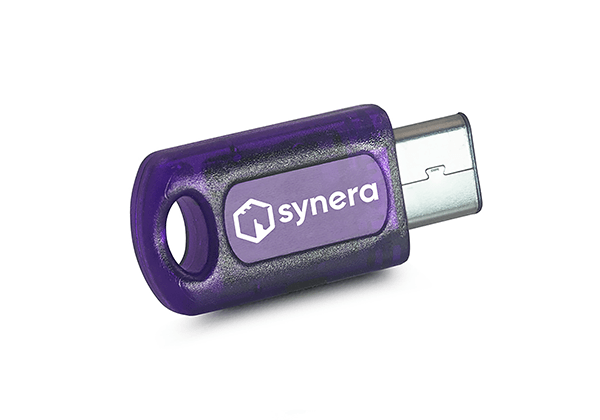
-
Synera F2 Type-C
- USB Type-C
- 29.5 х 13 х 6mm, 3g
- Serial number (ID) located on the
side of the case - Download PDF
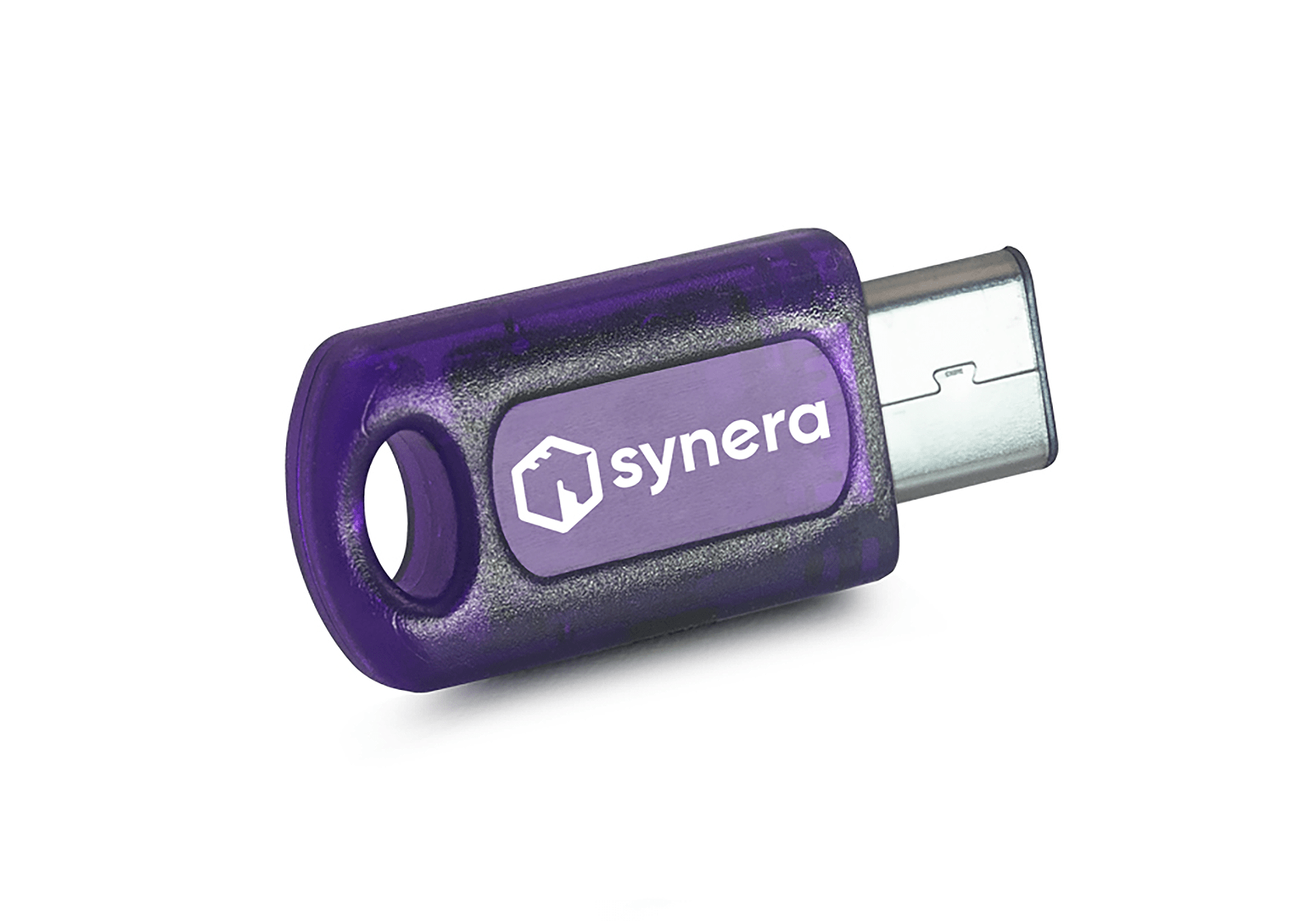
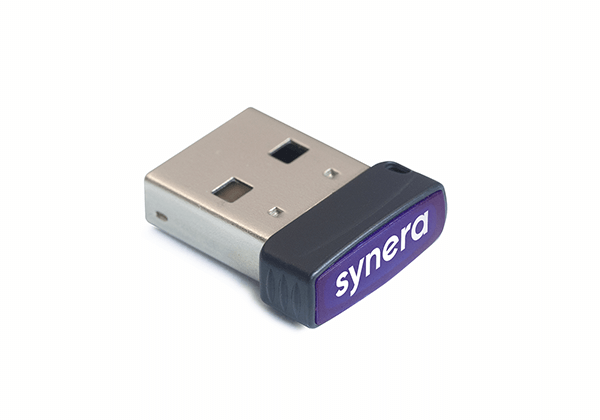
-
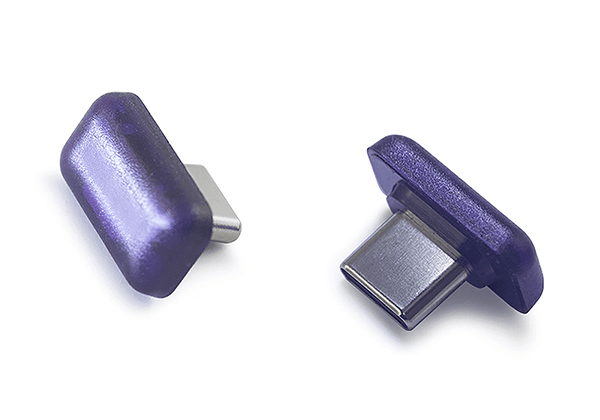
Synera F2 Micro
- USB Type-A
- 17.8 х 15.4 х 5.8 mm, 1.6 g
- Serial number (ID) located on the
metal part of the connector - Download PDF
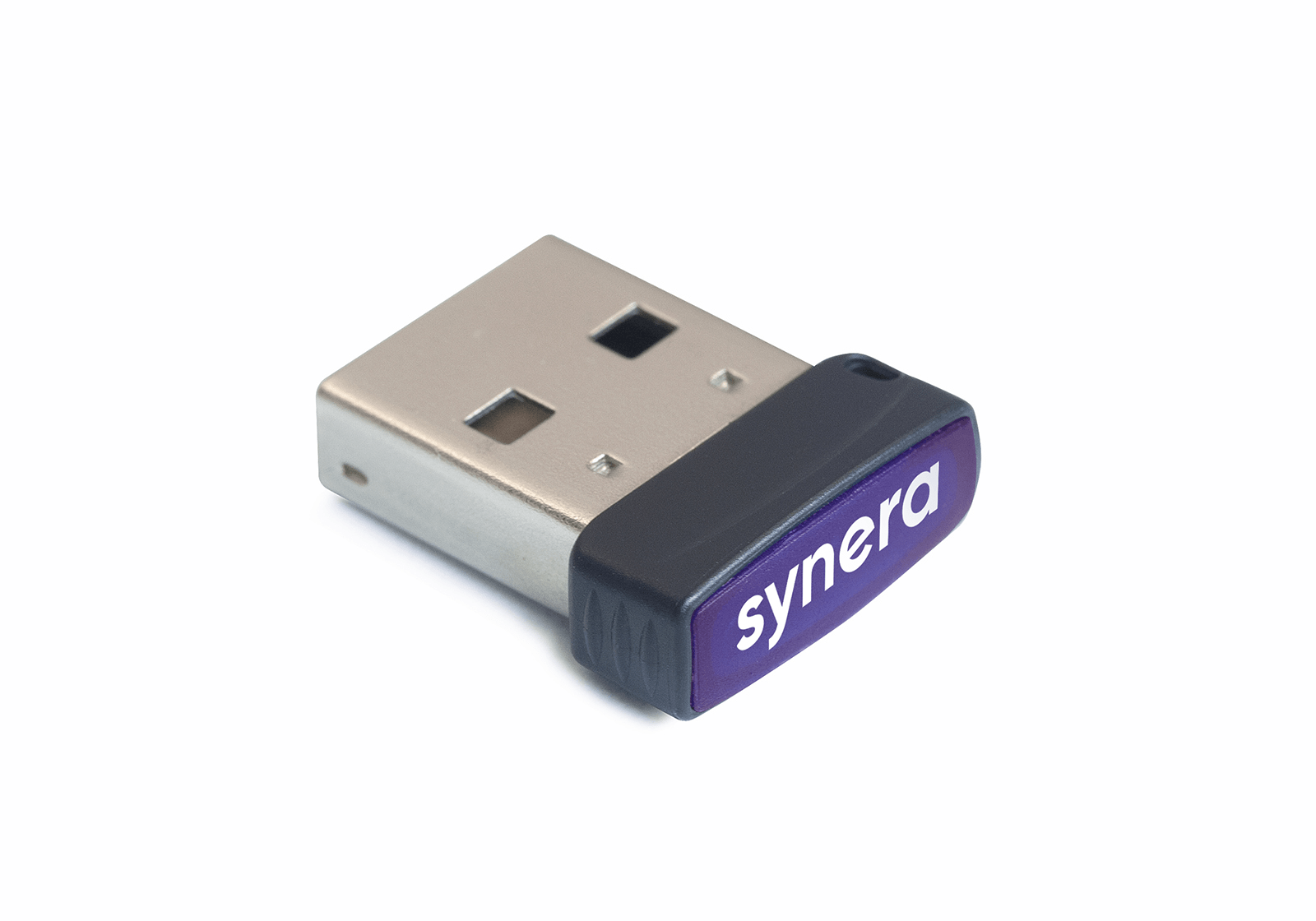
-
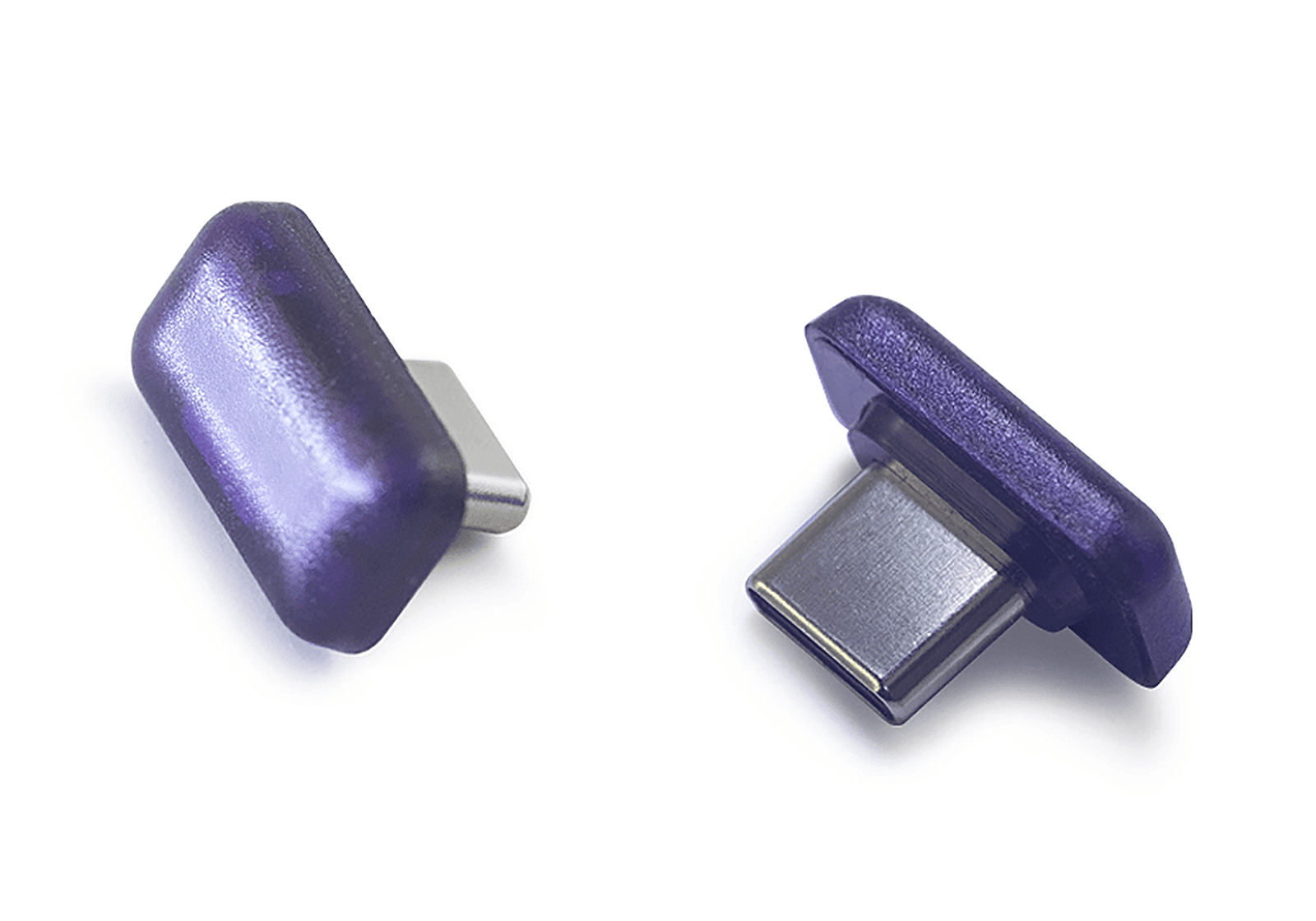
Synera F2 Nano
- USB Type-C
- 11 х 16 х 8 mm, 1.5 g
- Serial number (ID) located on the
metal part of the connector - Download PDF
Key characteristics of the product line
All devices in the product line support:
- FIDO2 standard (latest FIDO 2.1/CTAP 2.1 specification implementation);
- ES256 signature algorithm (ECC P256);
- U2F protocol (CTAP 1.2);
- One-factor authentication for 16 accounts per token.
About FIDO2
Authentication with the Synera F2 Key devices complies with the FIDO2 standard. This standard provides enhanced security through public-key cryptography. Synera F2 Key supports resident credentials storage, enabling true passwordless authentication on WebAuthn-compatible sites and applications since these credentials may contain usernames and other authentication data.