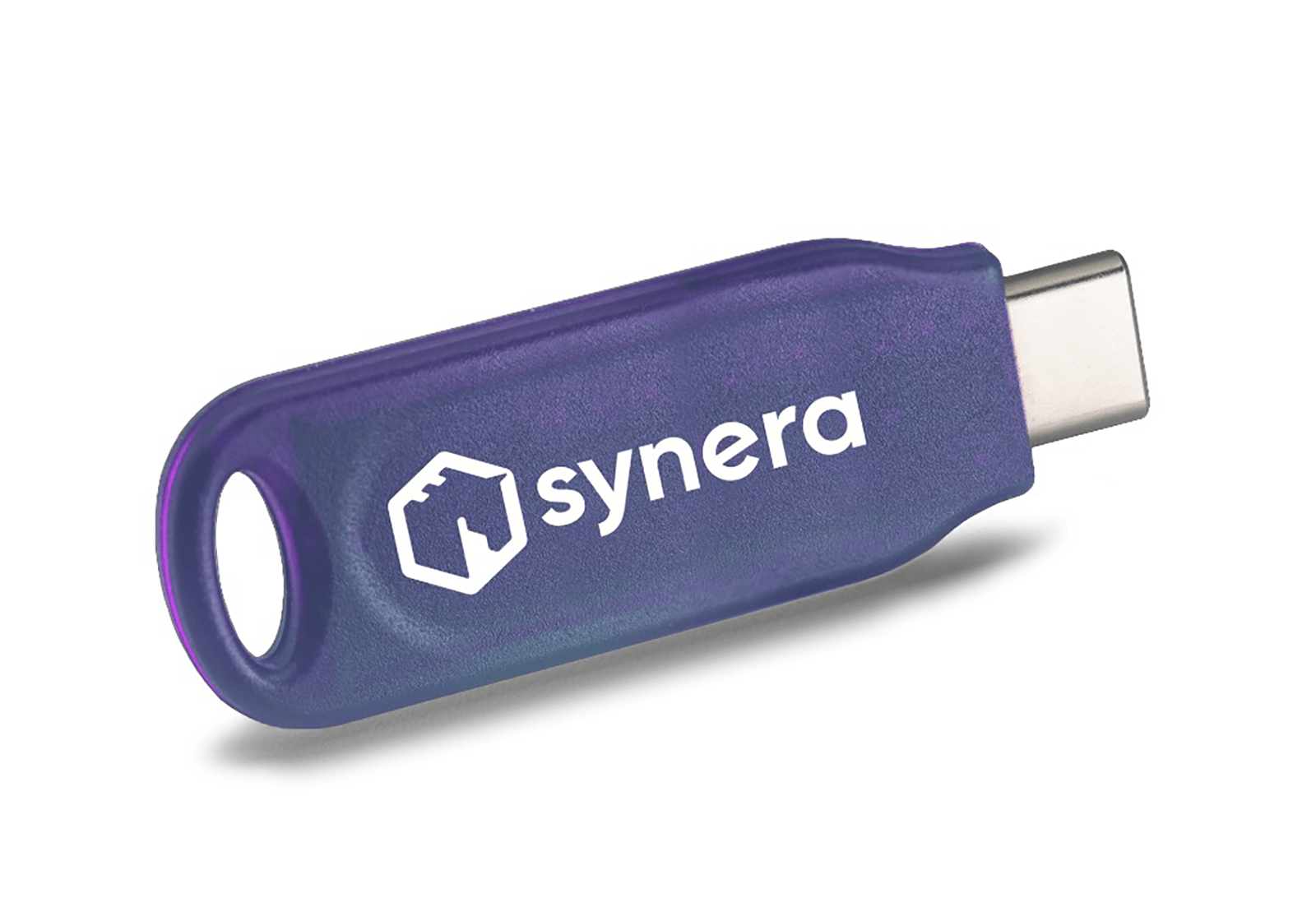
Synera F2 Key product line: management
and two-factor authentication
General information
The Synera F2 Key is a product line of authentication tokens for web services operating via the FIDO2 protocol (CTAP2). The Synera F2 keys serve as a unified authenticator for protecting web service accounts using two-factor authentication (2FA).
This user guide provides information about the Synera F2 Key product line. It details device management procedures, including setting and changing the PIN, and performing a factory reset.
Supported operating systems and browsers
Authentication methods
The Synera F2 Key devices support two authentication modes:
- Two-factor authentication (2FA) implemented via FIDO2 technology and requires entering username, password, and the Synera F2 Key's PIN;
- One-factor authentication (passwordless authentication) implemented via FIDO2 technology. This type of authentication eliminates username/password entry. Account access requires only the Synera F2 Key and its PIN.
Software support for the Synera F2 Key devices is implemented by a combination of the operating system and browser. The following operating systems and browsers are supported:
-
MS Windows (10+)
-
Browser Two-factor authentication Passwordless authentication Edge MS (Chromium) Yes Yes Google Chrome Yes Yes Mozilla Firefox Yes Yes
-
Linux (Debian 10+, Ubuntu 18+, CentOS 7.8+)
-
Browser Two-factor authentication Passwordless authentication Google Chrome Yes Yes Firefox Yes Yes
-
macOS (10.4 and above)
-
Browser Two-factor authentication Passwordless authentication Safari Yes Yes Google Chrome Yes Yes Edge for MacOS Yes Yes - Apple ID does not support passwordless authentication.
-
Android (10 and above)
-
Browser Two-factor authentication Passwordless authentication Google Chrome 105+ Yes No Mozilla Firefox 91+ Yes No Samsung Internet browser 21+ Yes No - On Android OS, the Synera F2 Key works via the CTAP1 (U2F) protocol. The protocol does not support passwordless authentication.
-
iOS (14.5 and above )
-
Browser Two-factor authentication Passwordless authentication Safari Browser Yes Yes - Apple ID does not support passwordless authentication.
- Synera F2 Keys without the NFC interface might require a Lighting-to-USB Type-C to connect to the phone.
- PIN must be set before authentication.
-
iPadOS (14.5 and above )
-
Browser Two-factor authentication Passwordless authentication Safari Browser Yes Yes - Apple ID does not support passwordless authentication.
- Works on devices with USB Type-C interface (iPad Mini 6, iPad 11 Pro, etc.).
- PIN must be set before authentication.
Managing your Synera F2 Key on Android, iOS and iPadOS
Currently, there is no way to change the PIN or reset the settings of the Synera F2 Key on your phone or tablet. To manage the key, you will need either:
- a computer running Windows 10 or later, or;
- a computer running any other operating system with Google Chrome installed.
Managing Synera F2 Keys
The Synera F2 Keys can be managed on Windows, macOS, and GNU/Linux operating systems.
The following operations are supported:
- Setting a PIN for the key;
- Changing the existing PIN;
- Resetting the security key if the PIN has been blocked.
PIN policy specifications:
- No default PIN is preconfigured;
- A set PIN can be changed but cannot be removed without resetting the security key;
- PIN length must be between 4 and 63 characters;
- Entering the PIN incorrectly 8 consecutive times will block the PIN. To unblock it, you will need to reset the security key.
Managing Synera F2 Keys in Windows
-
Setting the Synera PIN
-
To set the Synera PIN:
- Connect the security key to your PC.
- Go to Start → Settings.
- Navigate to Accounts → Sign-in options.
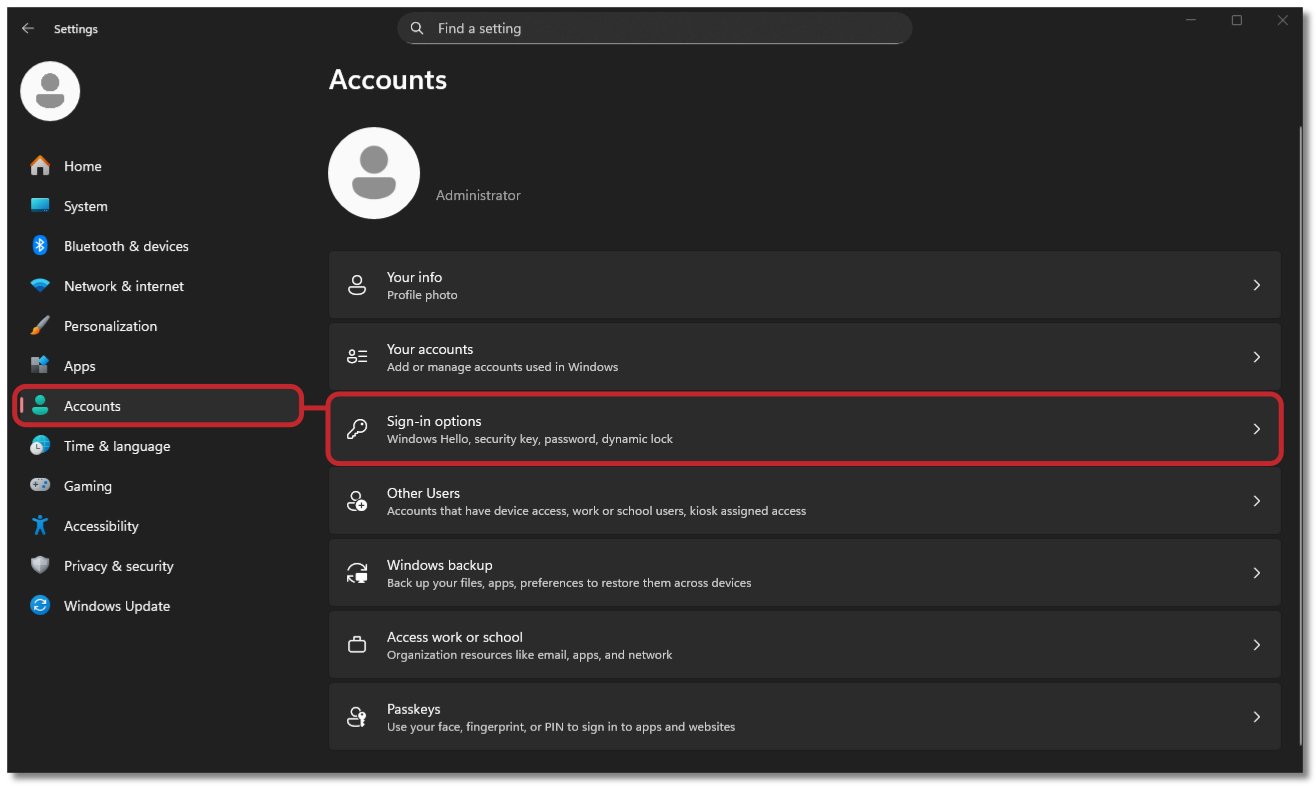
- Click Security Key and select Manage.
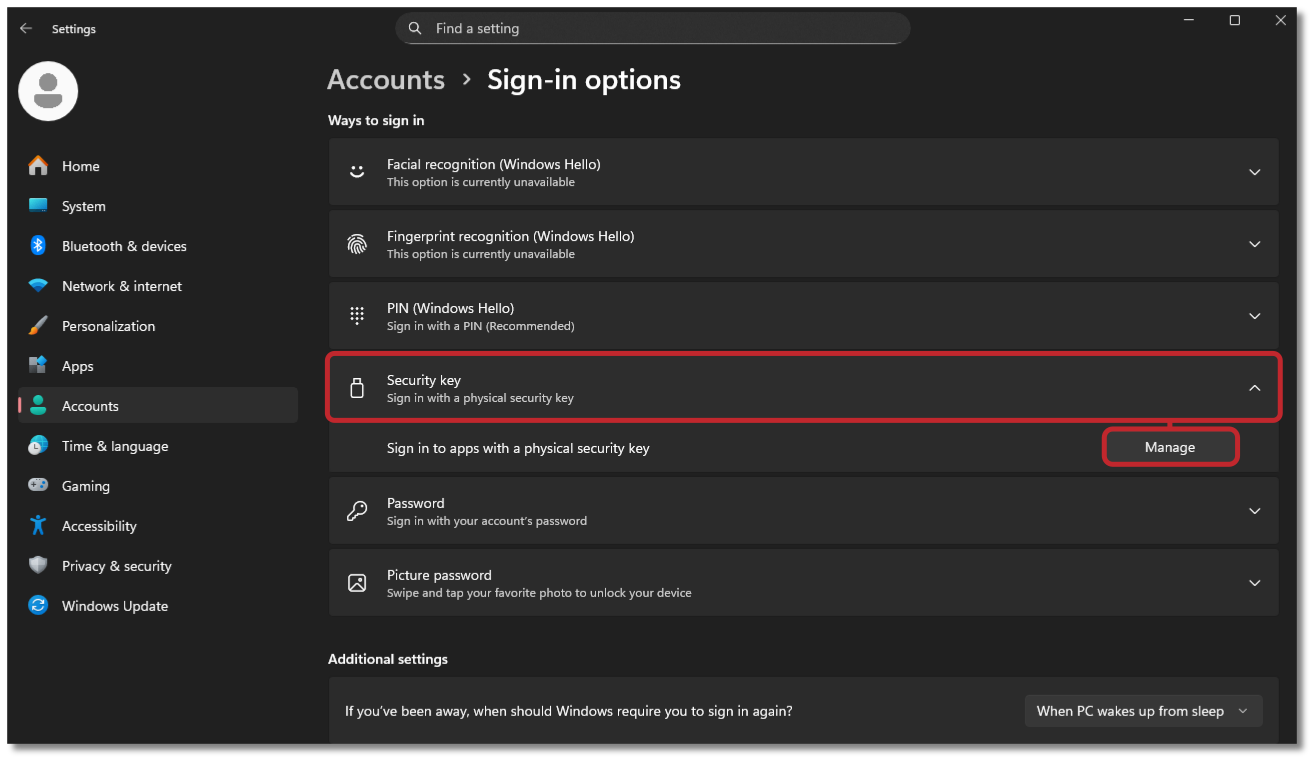
- Follow the instructions in the system window and touch the touch-sensitive button when requested.
- Under Security Key PIN, click Add.
- Enter the new PIN twice.
- Click OK.
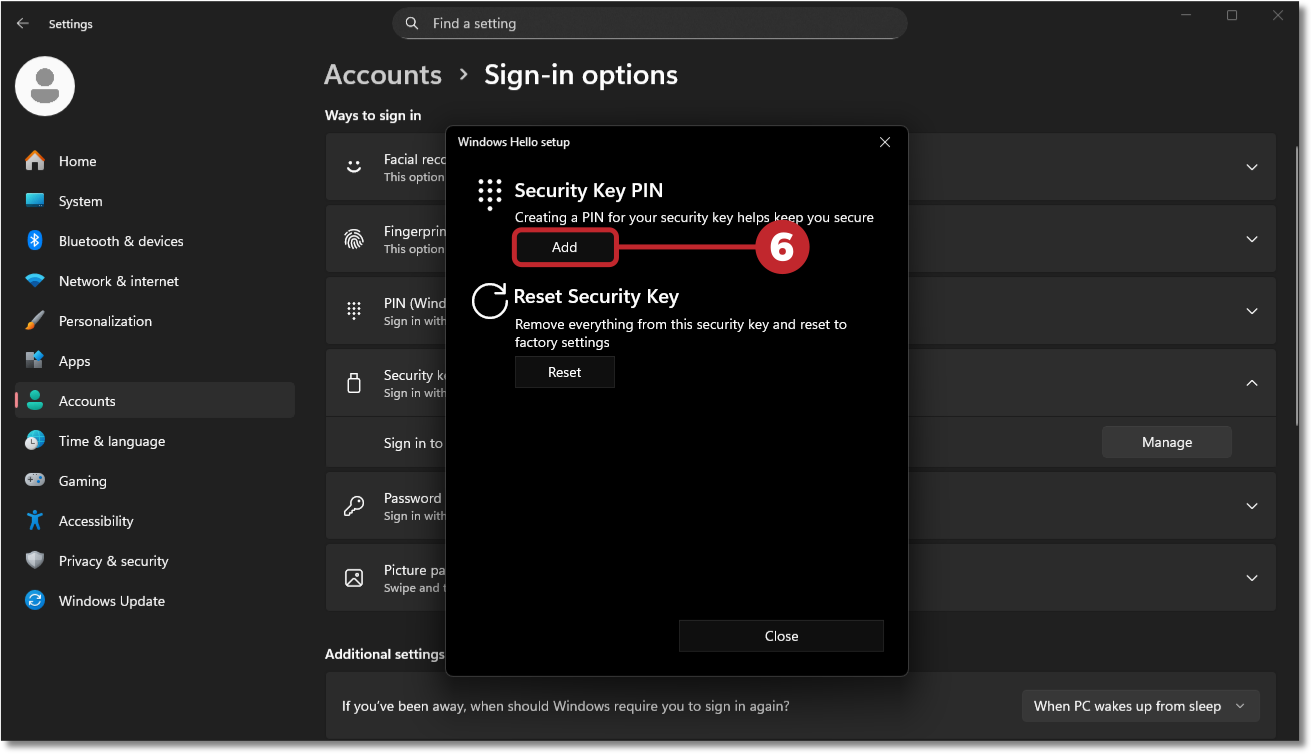
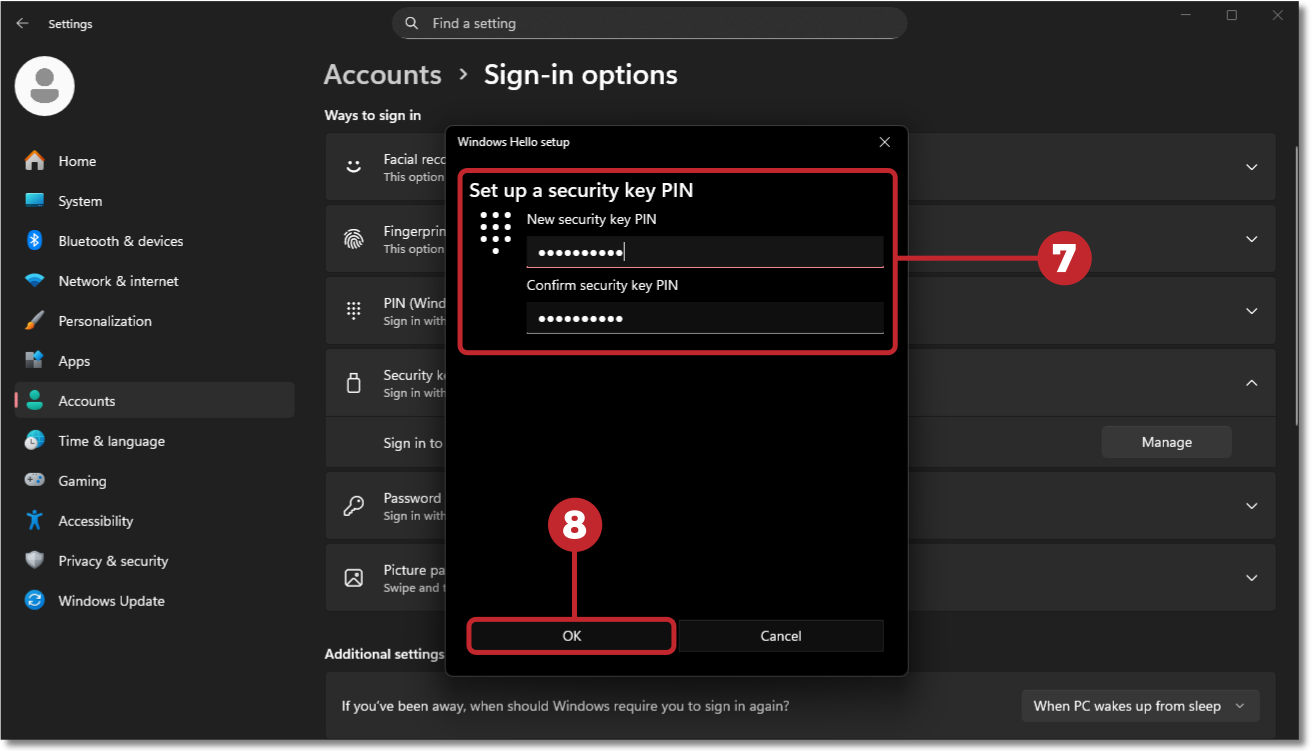
As a result, the Synera PIN will be set.
-
Changing the Synera PIN
-
To change the Synera PIN:
- Connect the security key to your PC.
- Click Start → Settings.
- Navigate to Accounts → Sign-in options.
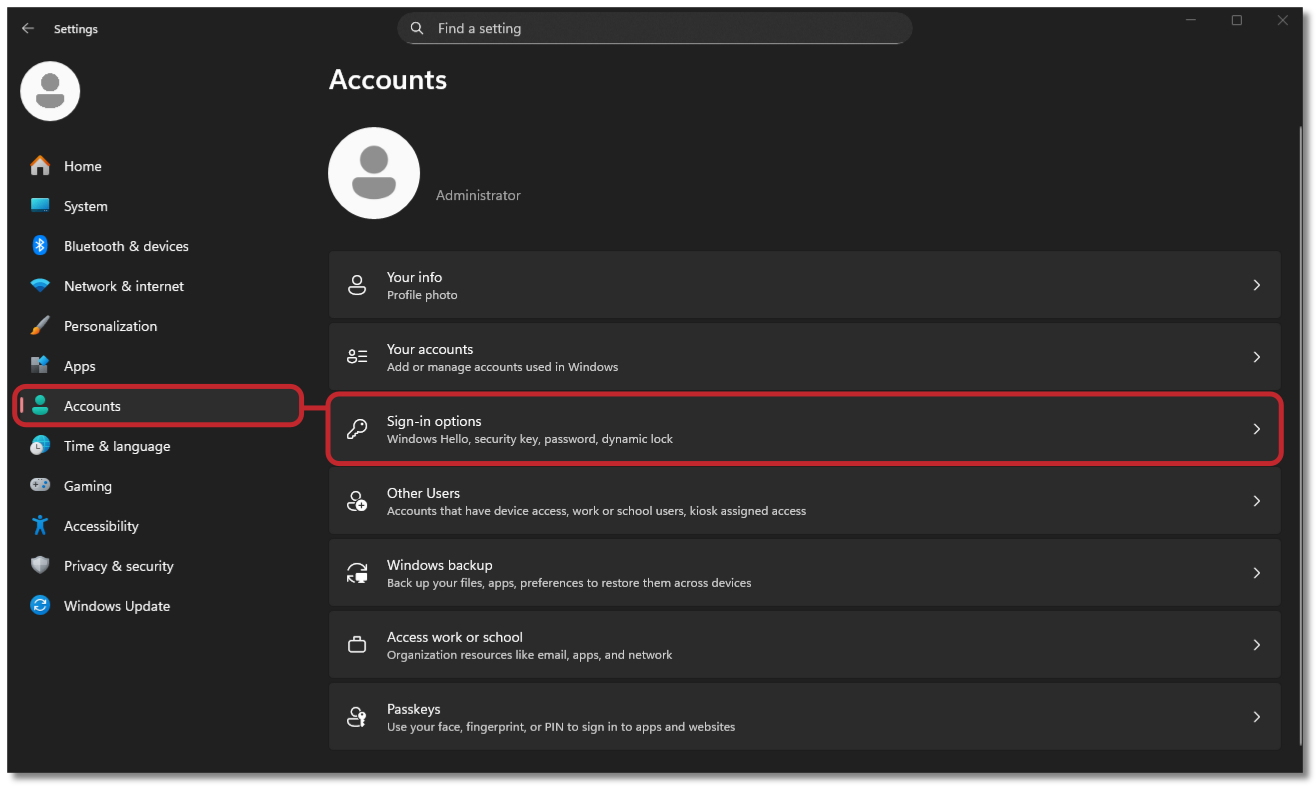
- Click Security Key and select Manage.
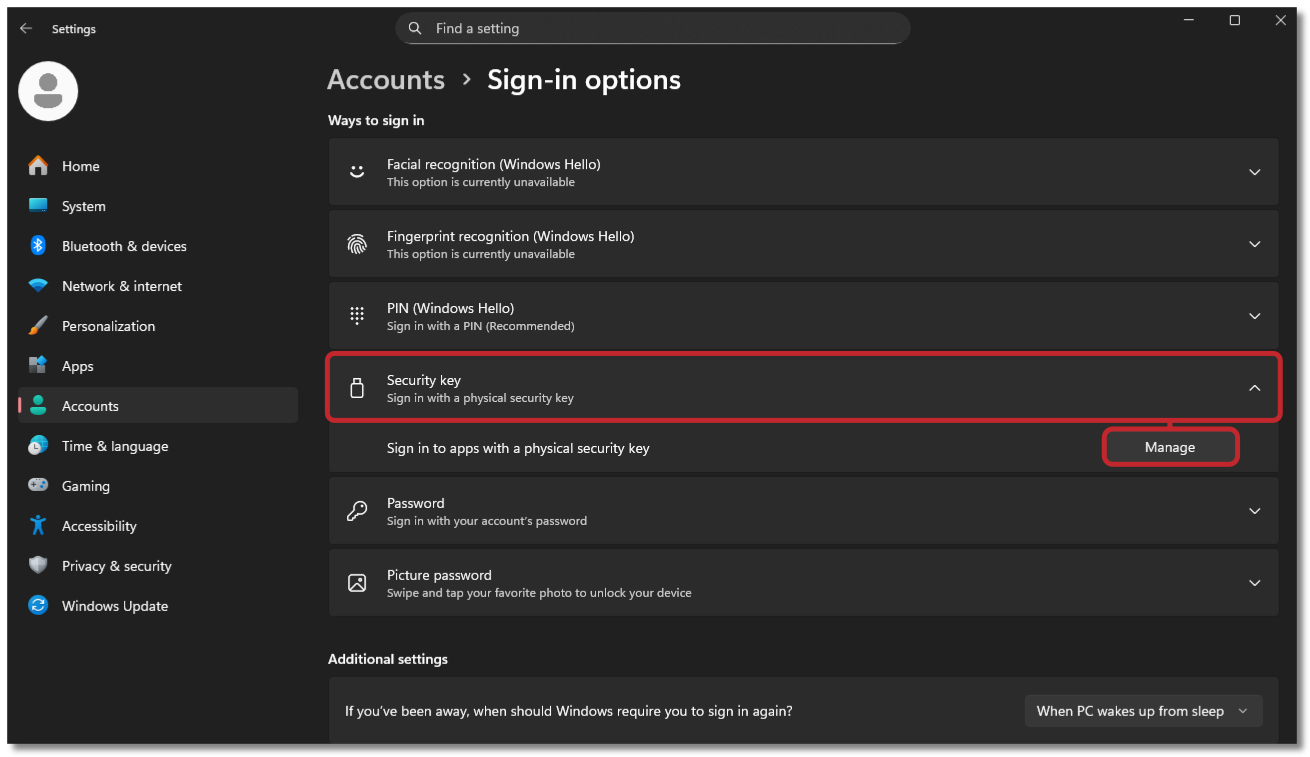
- Follow the instructions in the system window and touch the touch-sensitive button when requested.
- Under Security Key PIN, click Change.
- Enter the current PIN.
- Enter the new PIN twice.
- Click OK.
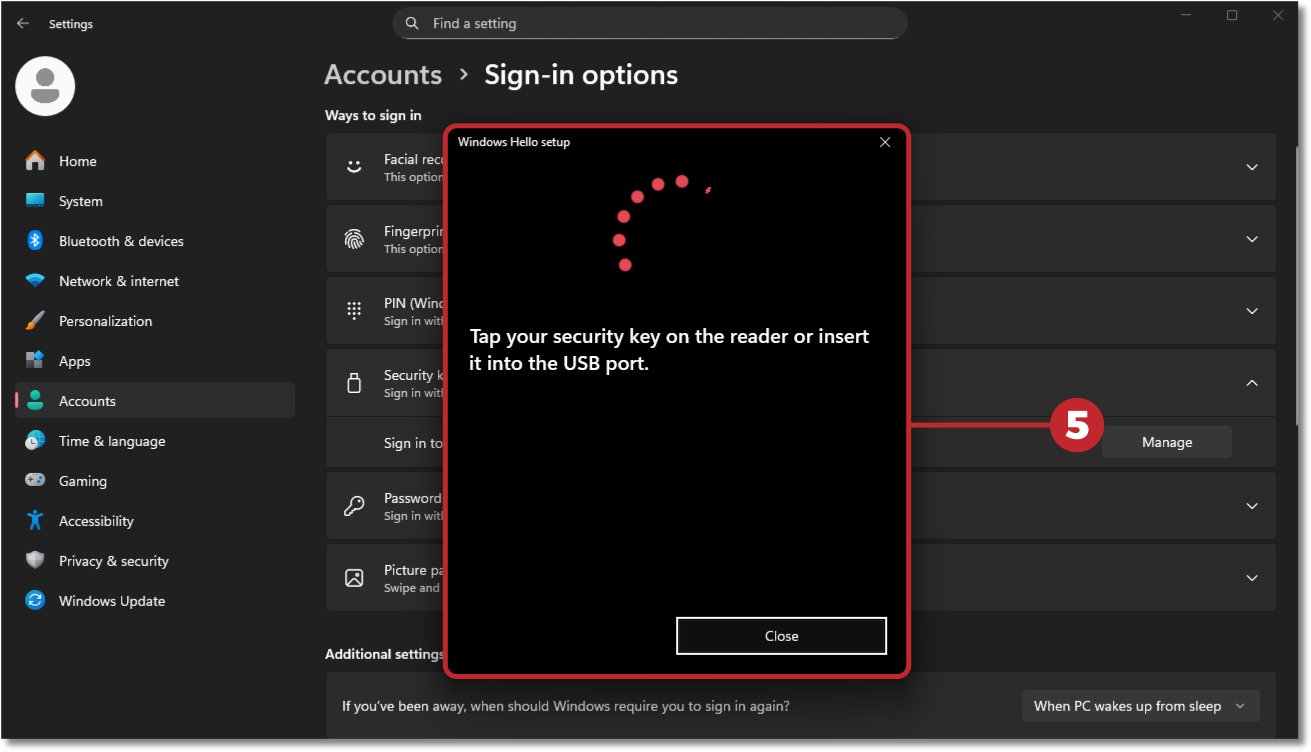
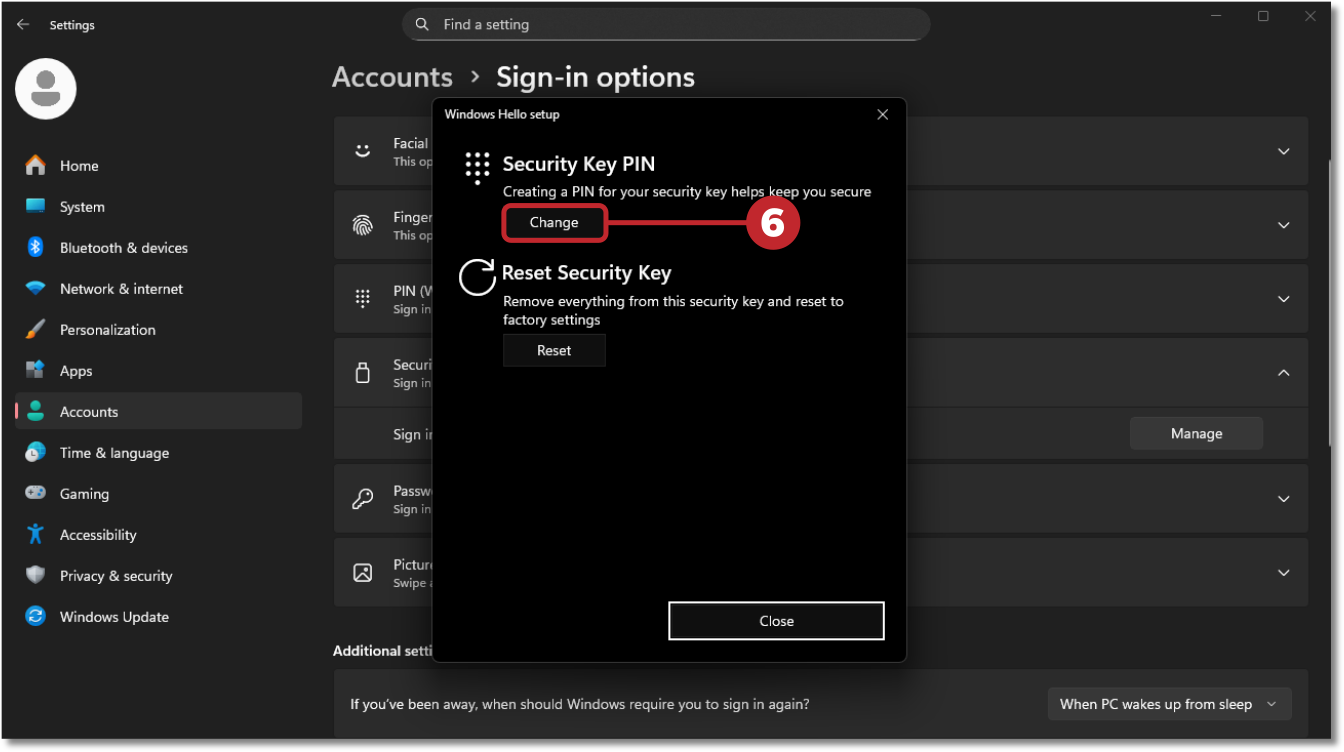
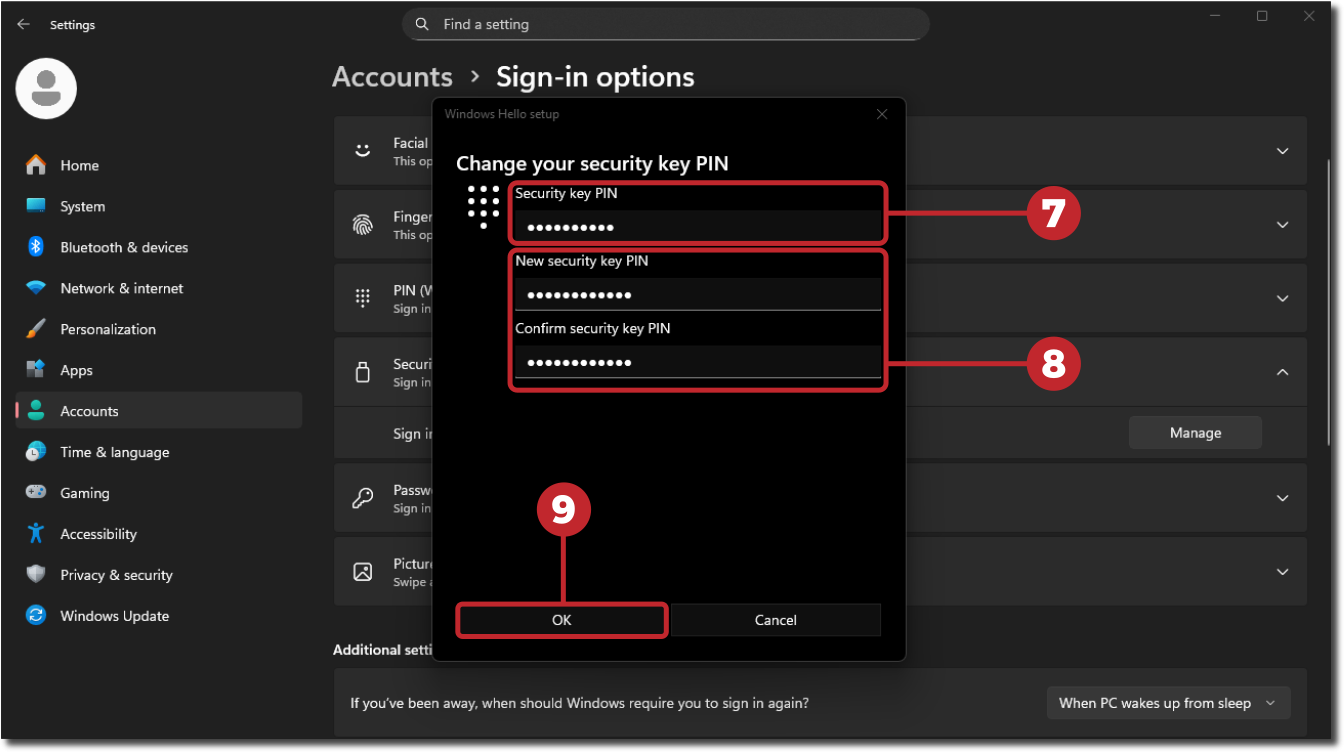
As a result, the Synera PIN will be changed.
-
Resetting the Synera F2 Key
-
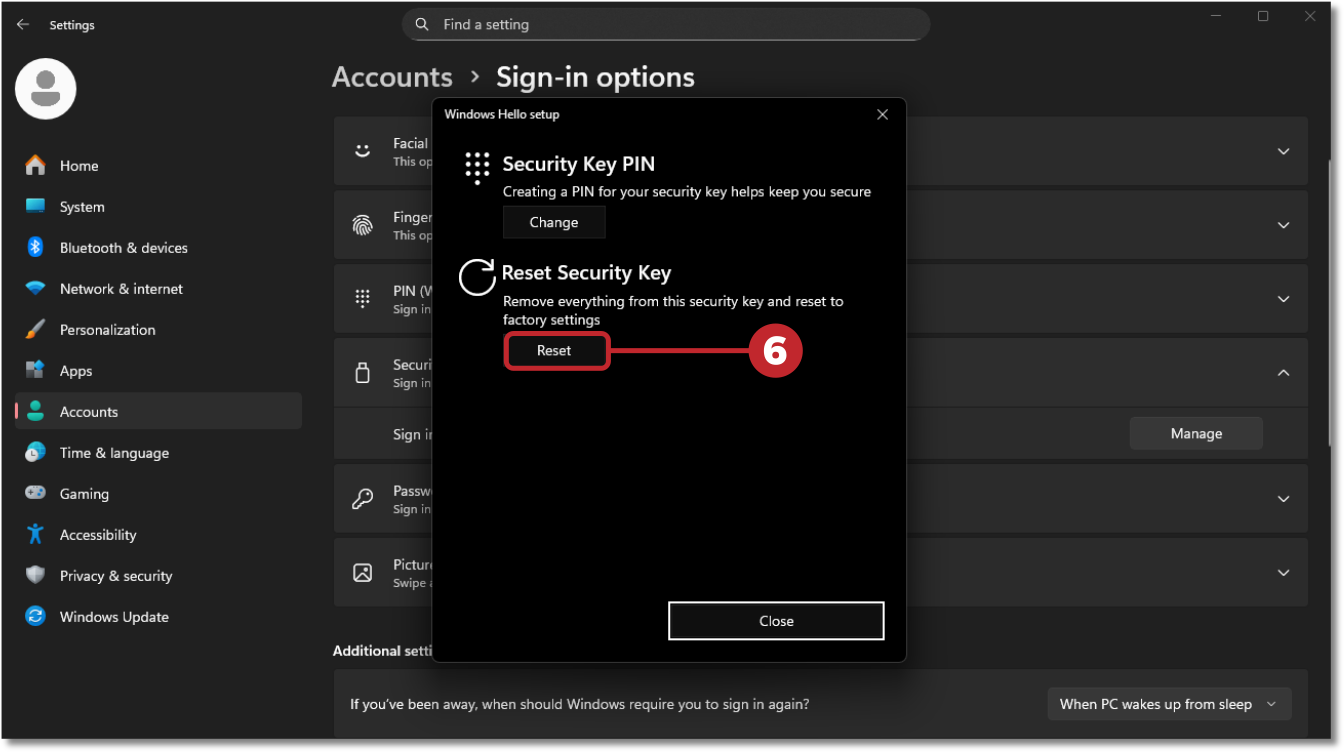
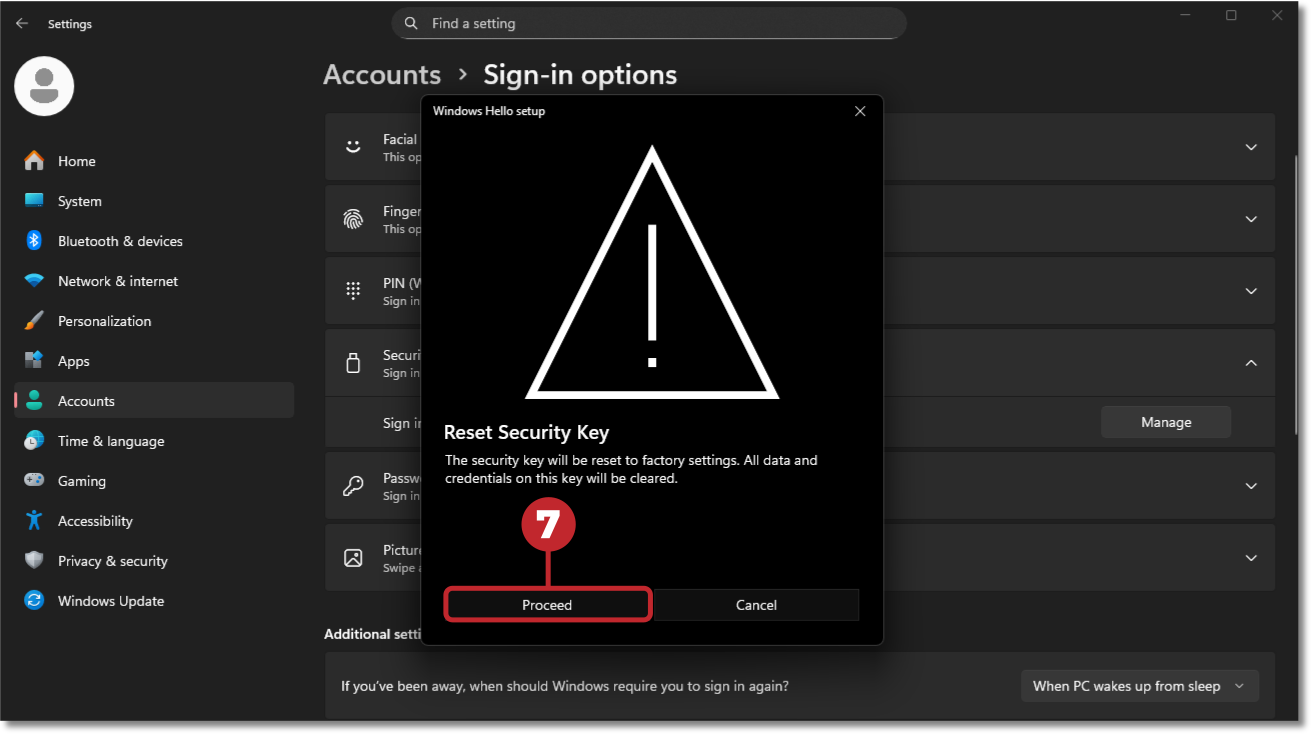
Resetting the Synera F2 Key is necessary if the PIN is blocked. Resetting the Synera F2 Key permanently and irrecoverably erases all credentials stored on it.
To reset the Synera F2 Key:
- Connect the security key to your PC.
- Click Start → Settings.
- Navigate to Accounts → Sign-in options.
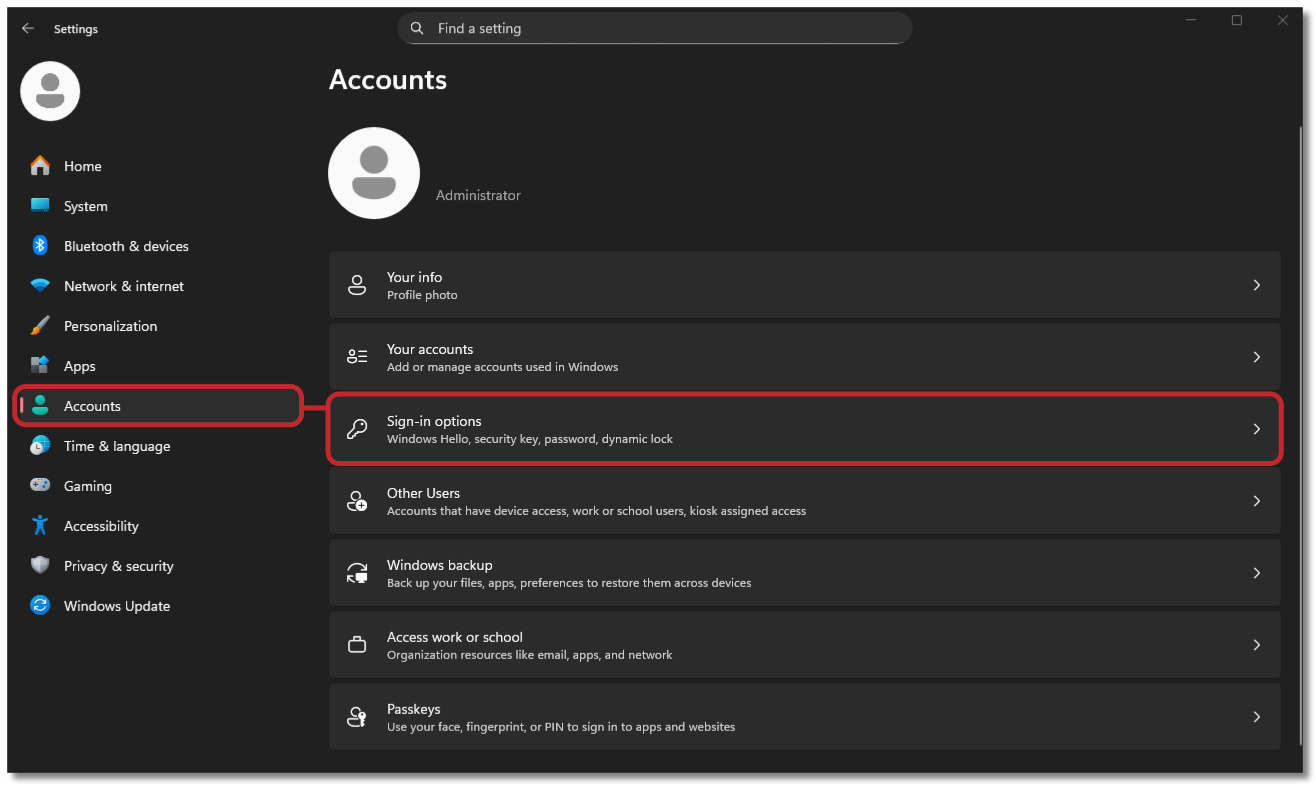
- Click Security Key and select Manage.
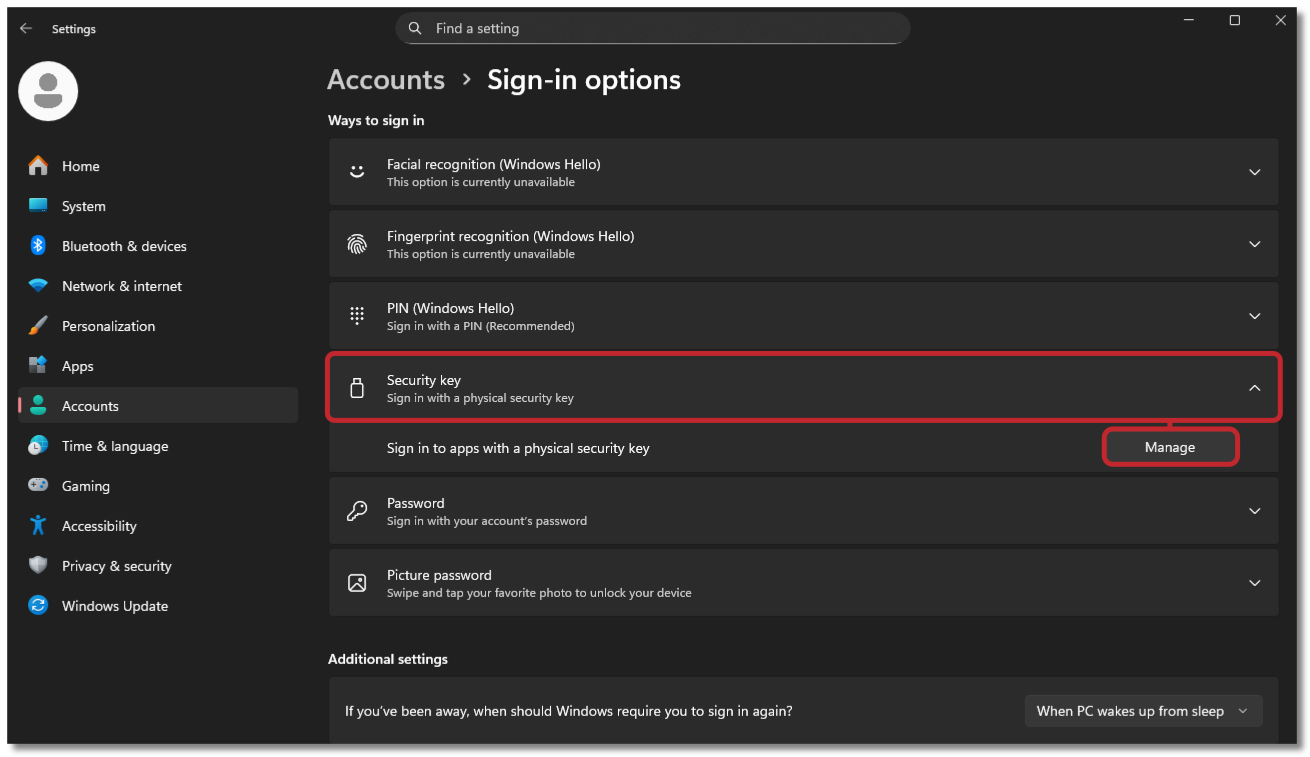
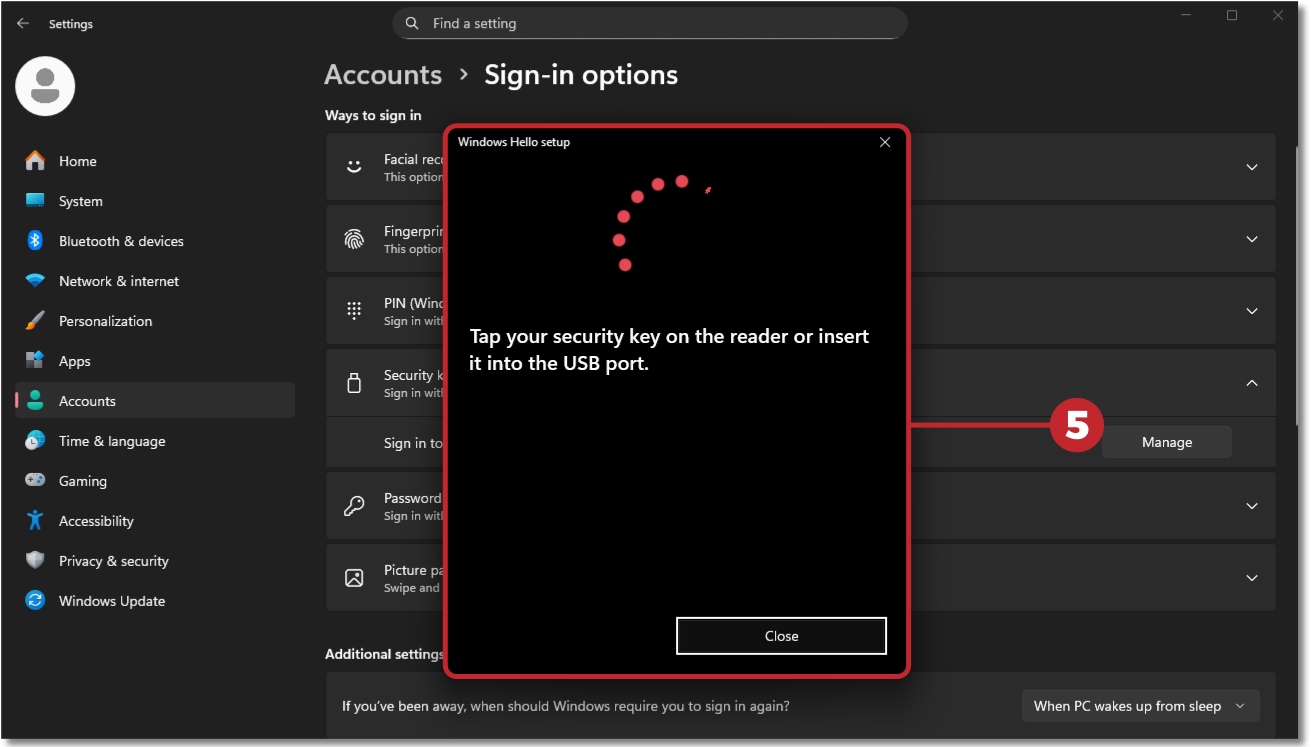
- Follow the instructions in the system window and touch the touch-sensitive button when requested.
- In the Security key reset section, click Reset.
- Click Proceed
- Follow the instructions in the system window: connect the security key again and touch the touch-sensitive button when prompted.
The message "Reset Complete" will appear.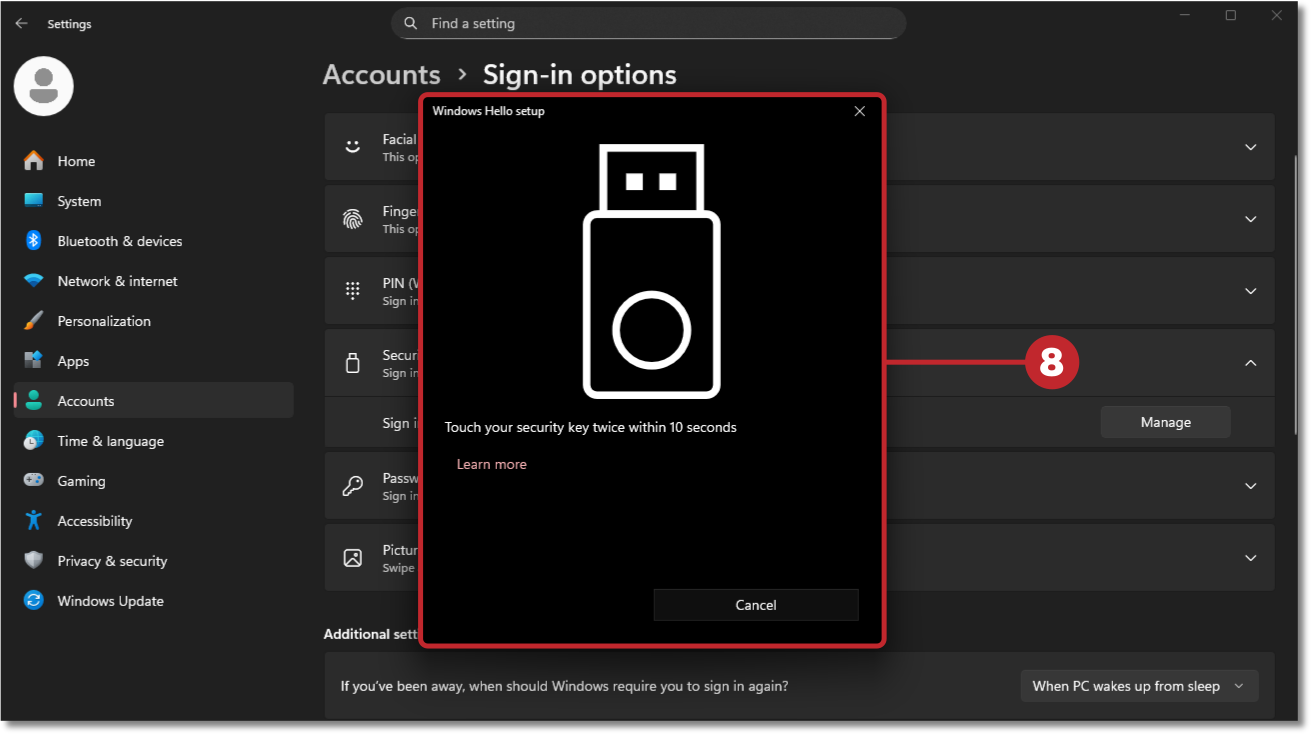
- Click Done.
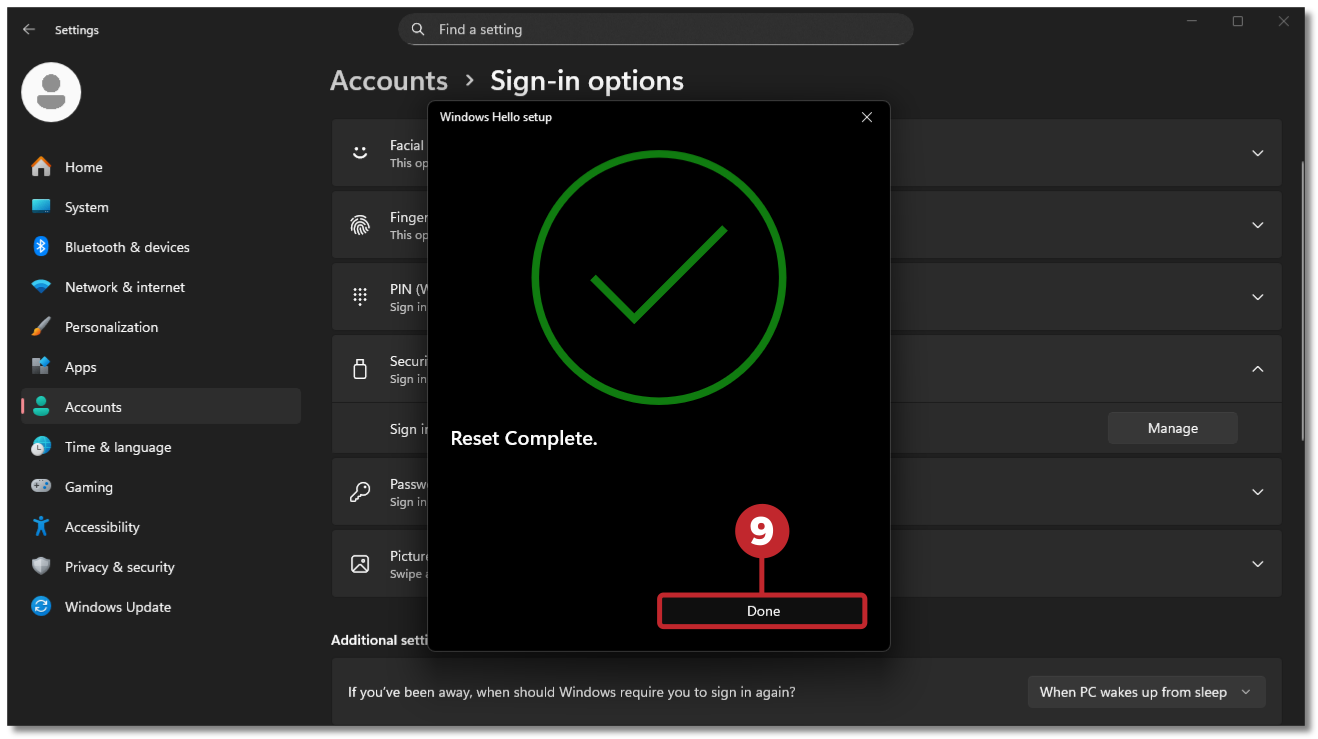
As a result, the Synera F2 Key will be reset.
Managing Synera F2 Keys in other operating systems
-
Setting the Synera PIN
-
If you use macOS or GNU/Linux, or if you need to set up your Synera F2 Key to work on a mobile device, you can use the security key management feature in Google Chrome. This feature is only available in the desktop version.
The process is identical for all operating systems.
To set the Synera PIN:
- Open Google Chrome on your computer.
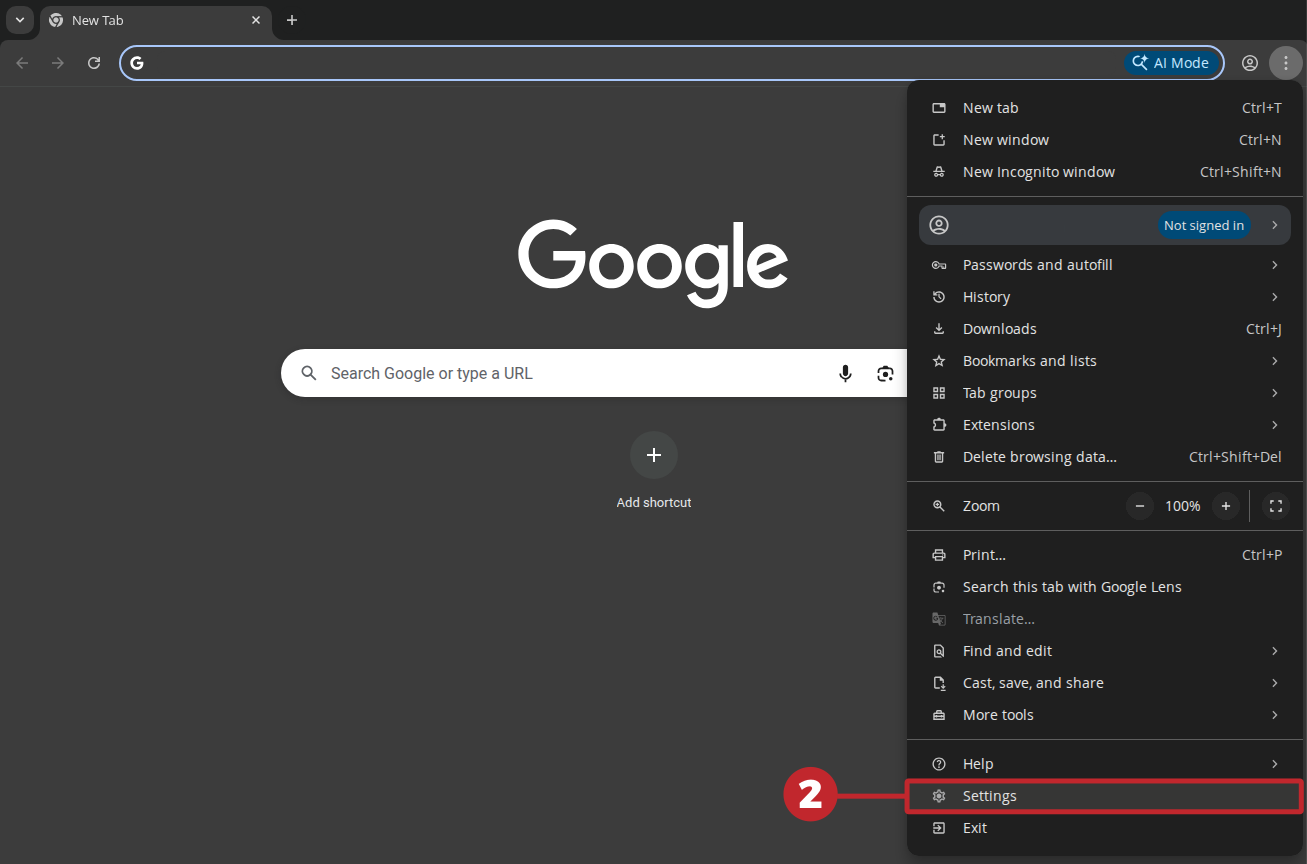
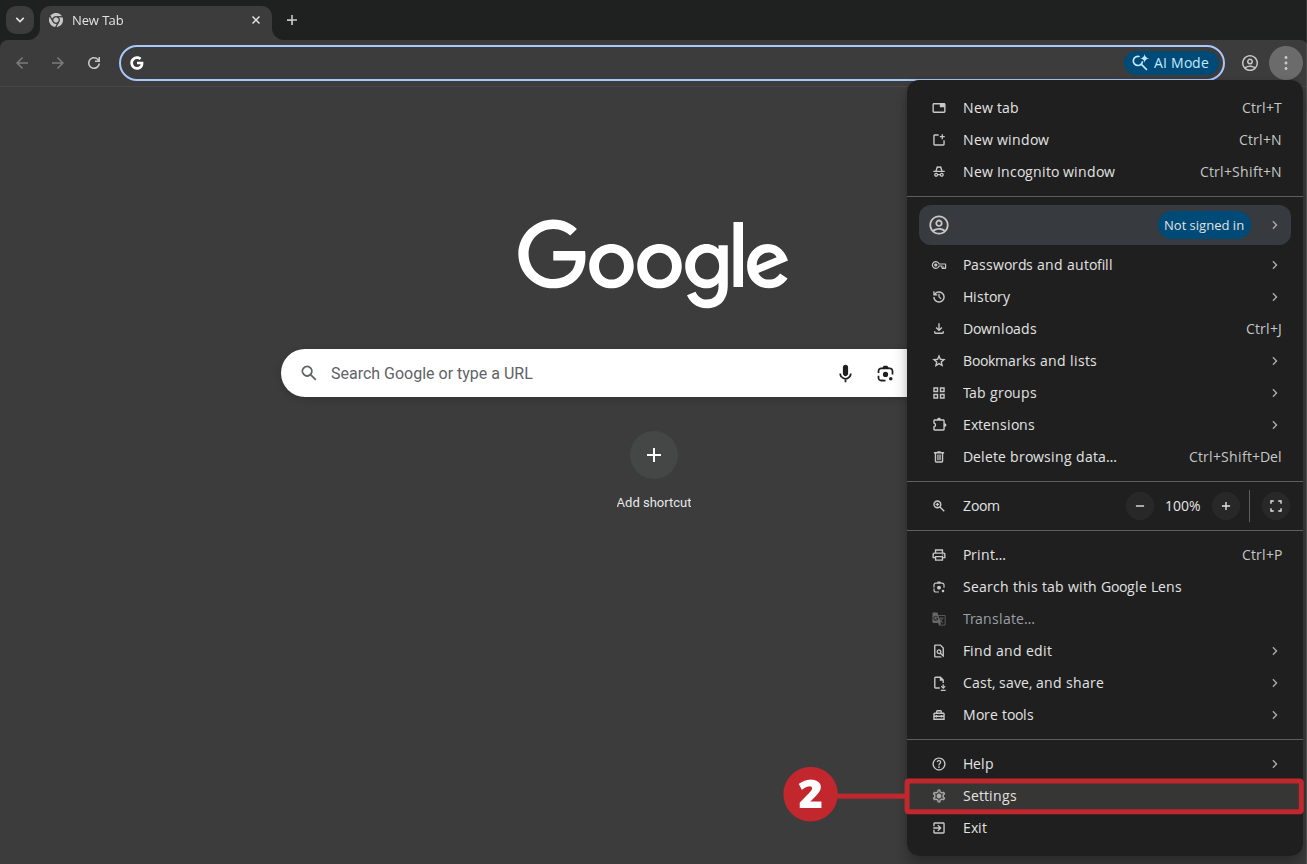
- Click and navigate to Settings.
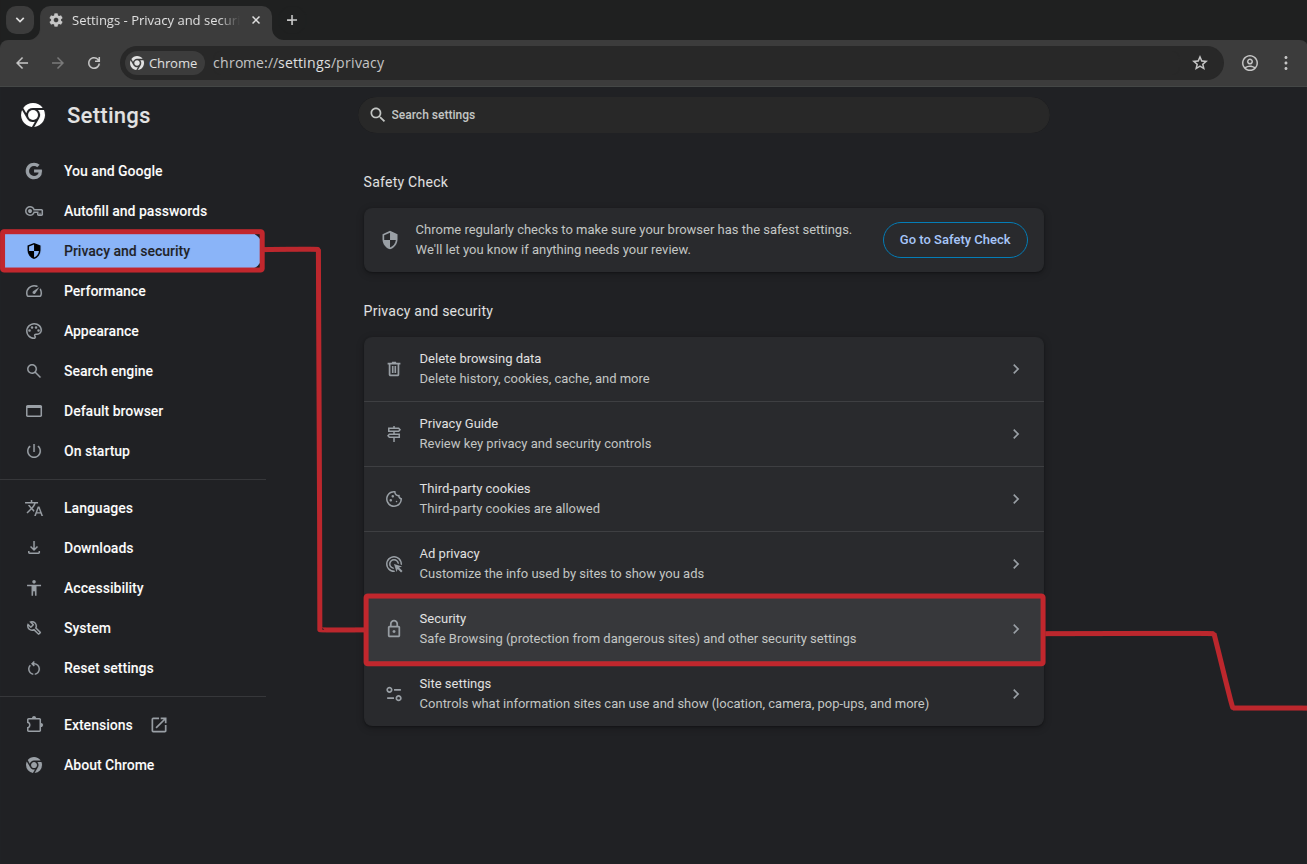
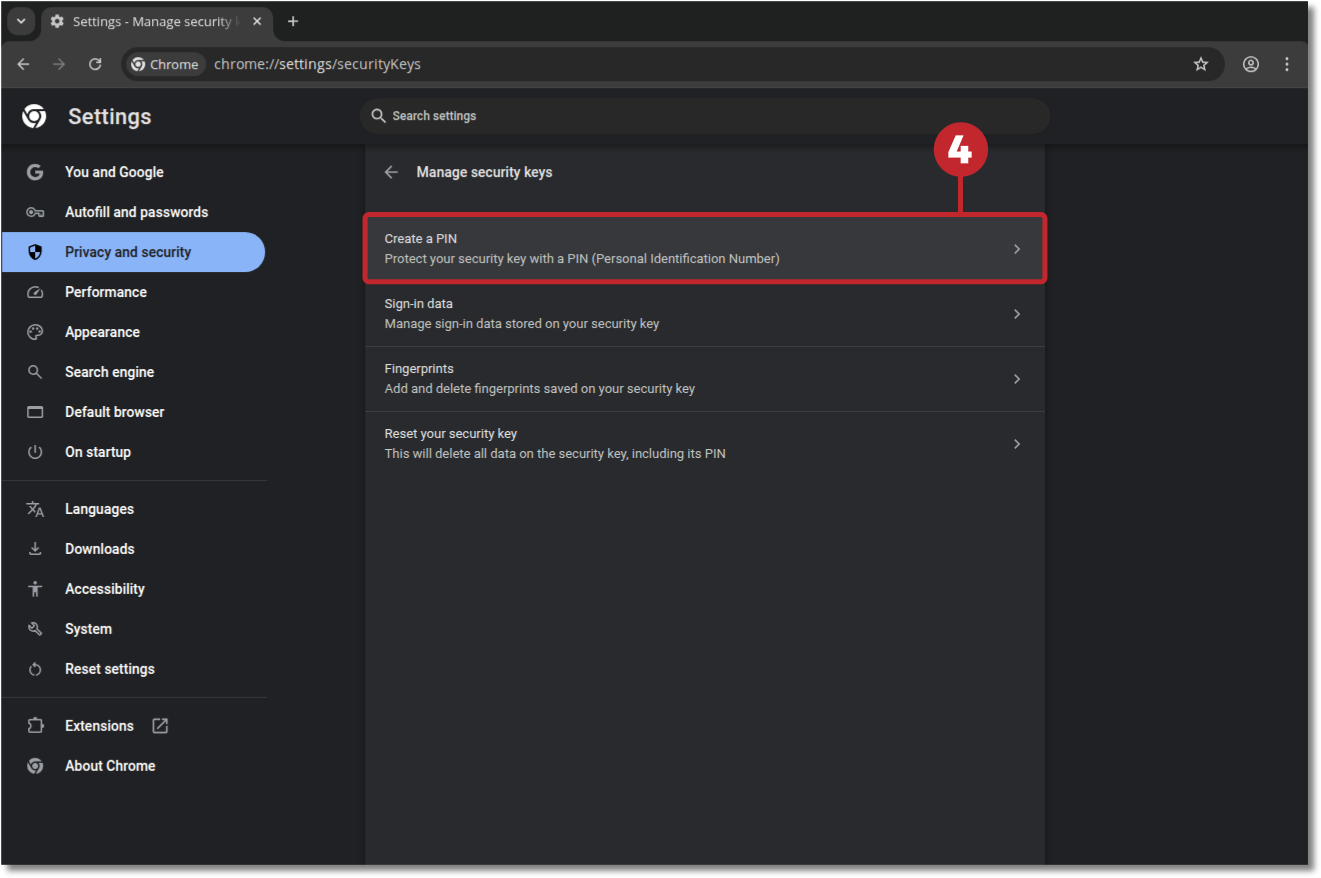
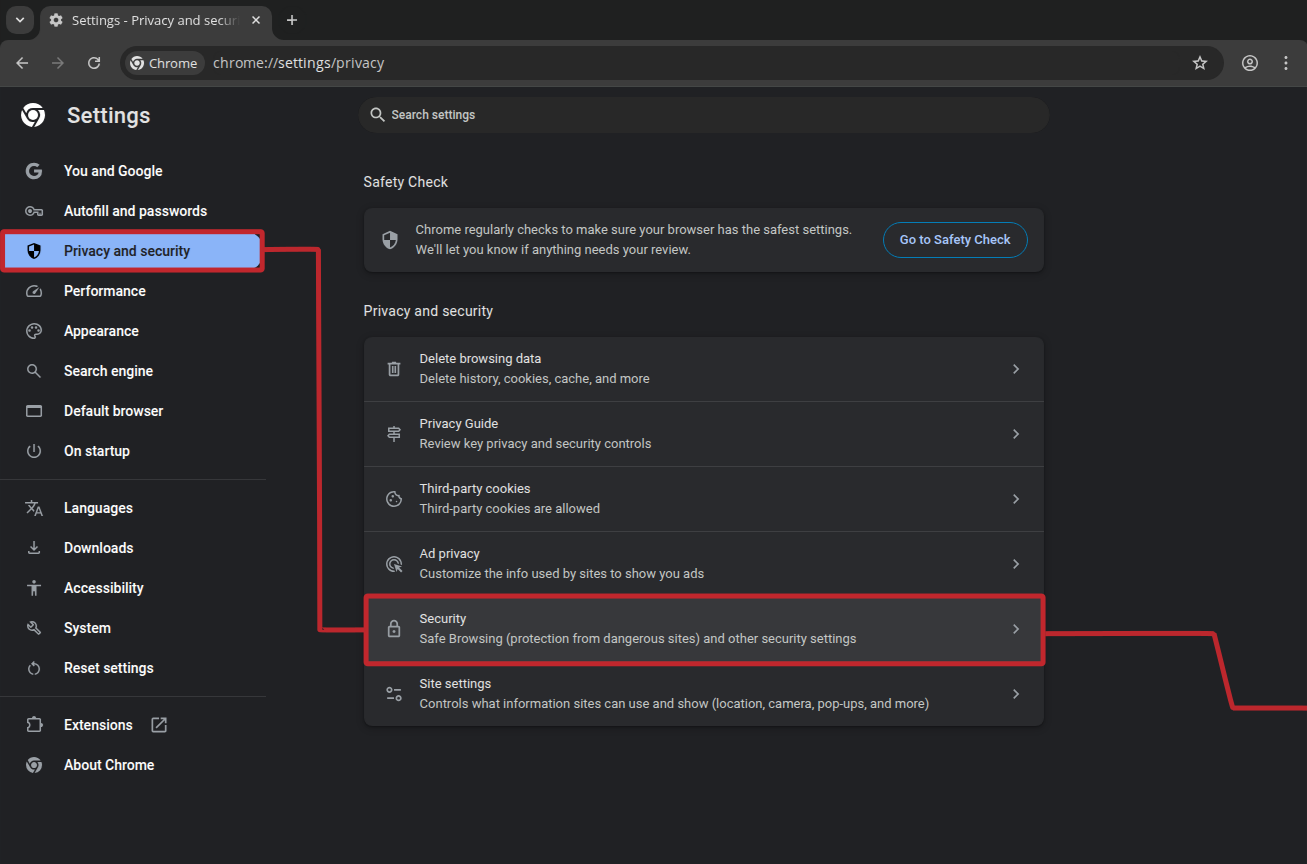
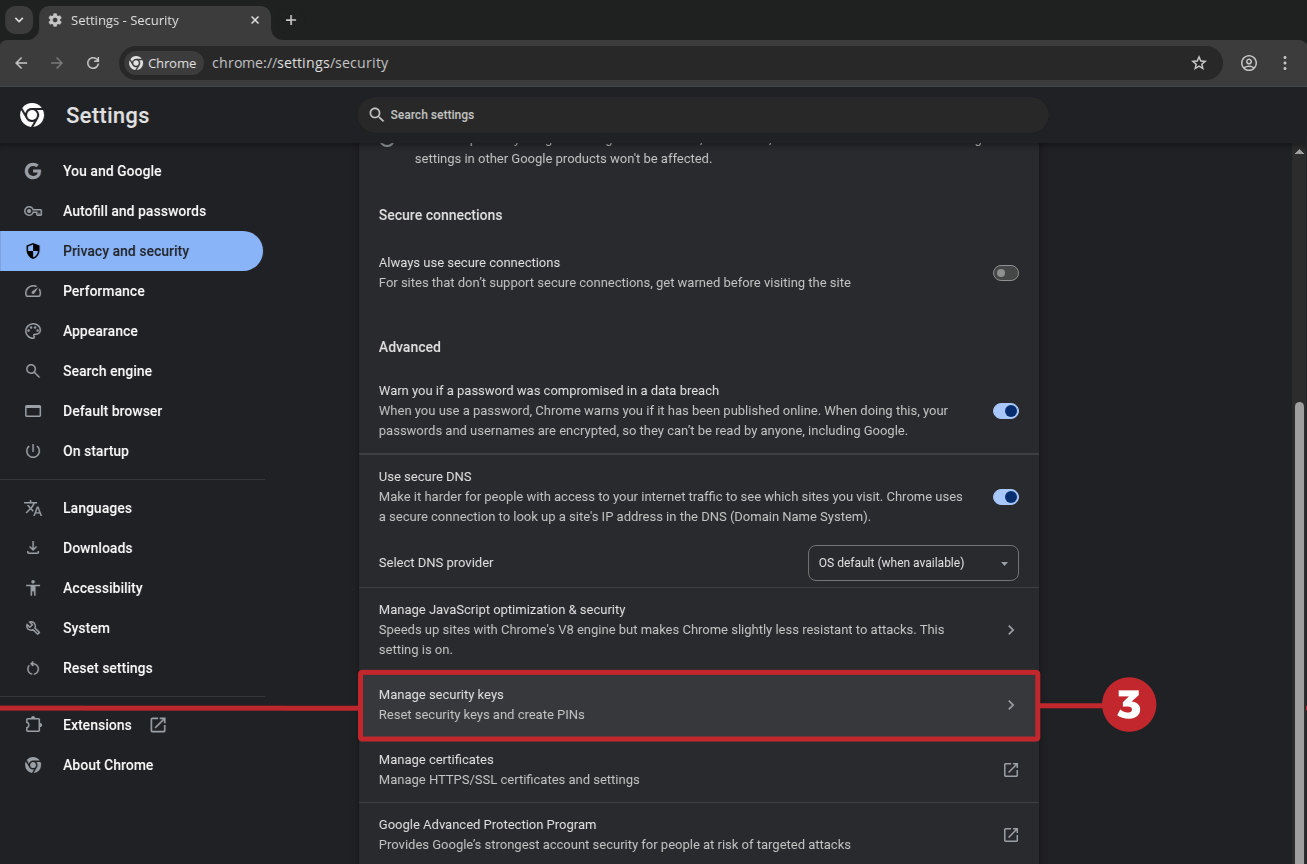
- Navigate to Privacy and security → Security → Manage security keys.
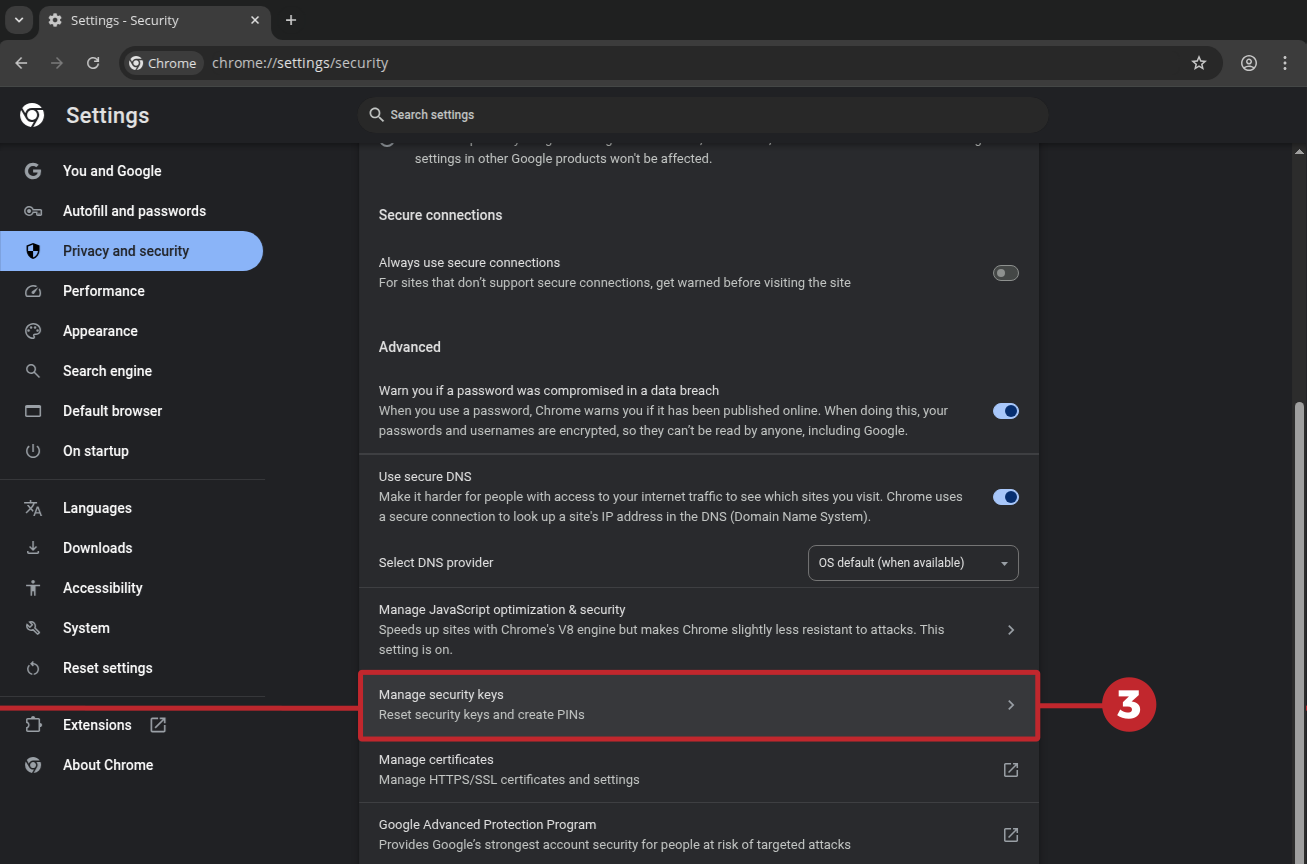
- Click Create a PIN.
- Follow the system prompts:
- Connect the security key;
- Touch the touch-sensitive button when requested.
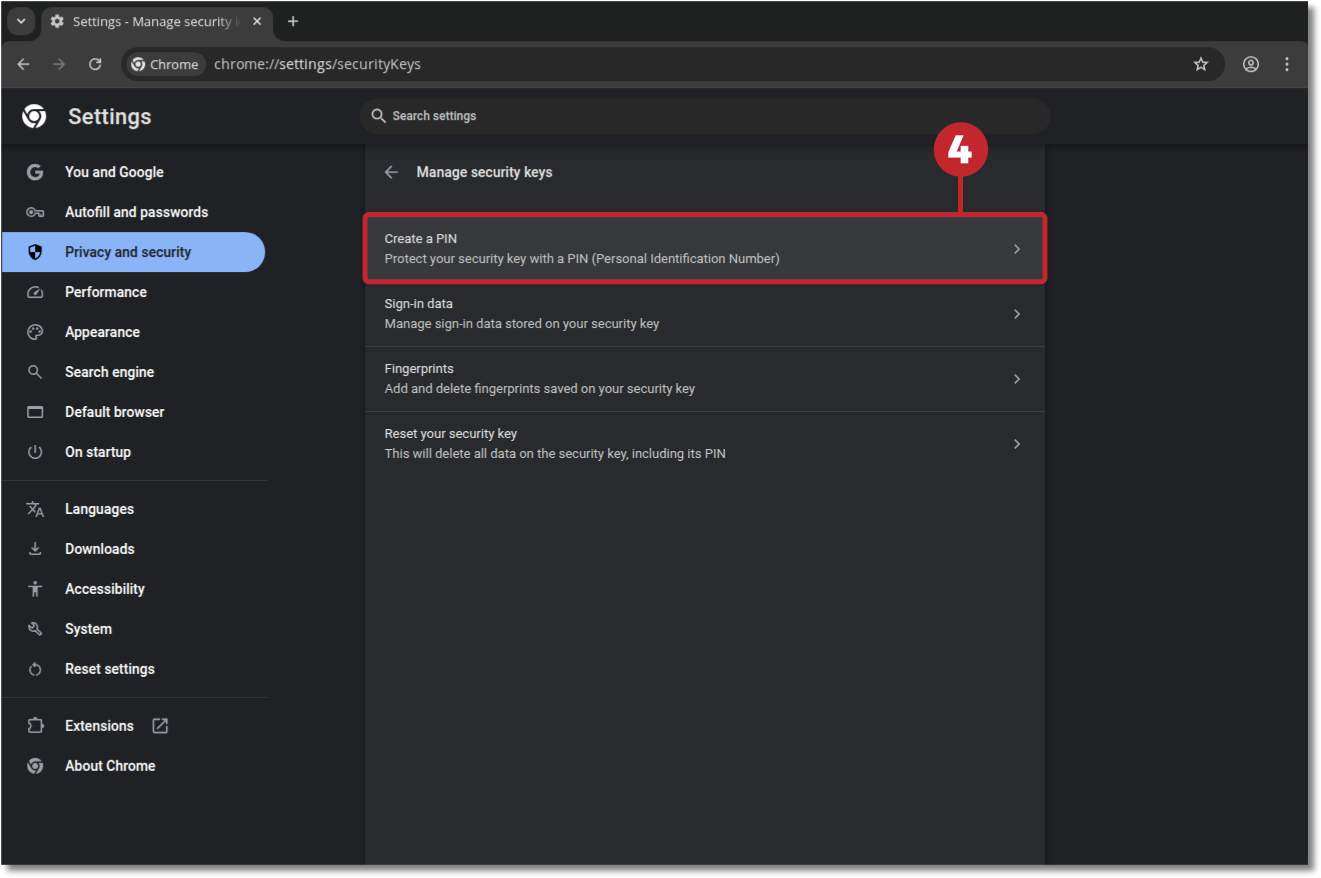
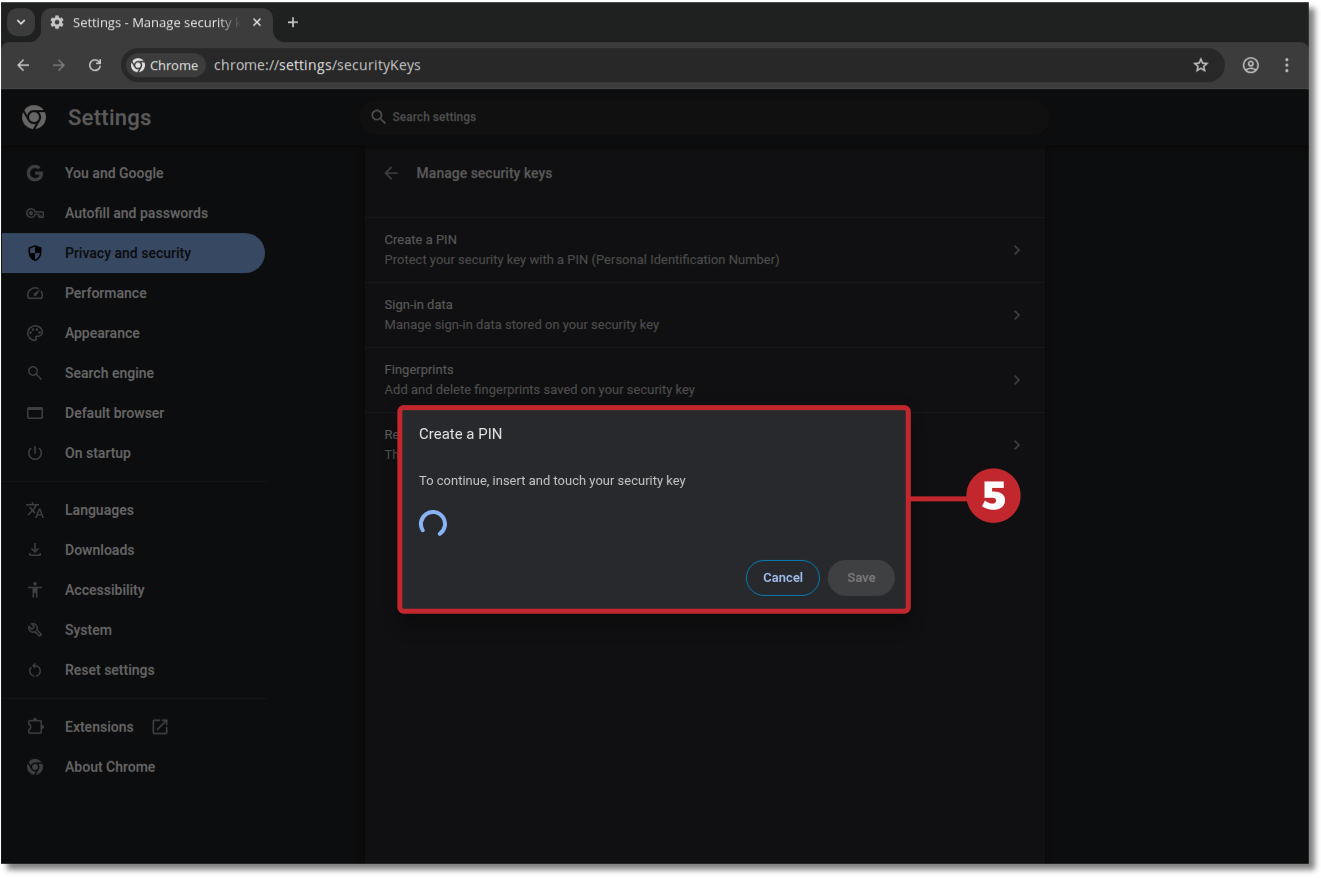
- Enter the new PIN twice.
- Click Save.
- Click OK.
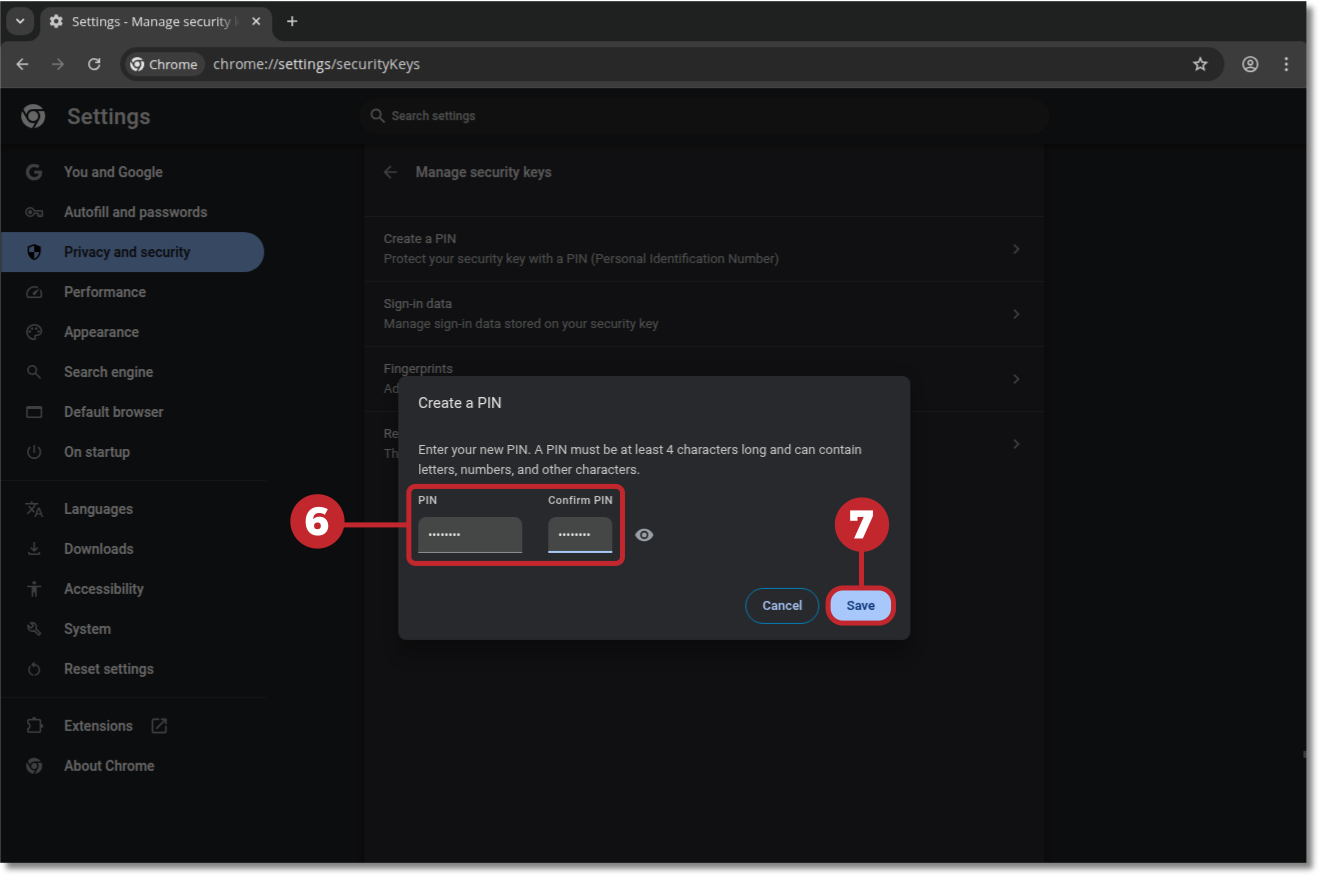
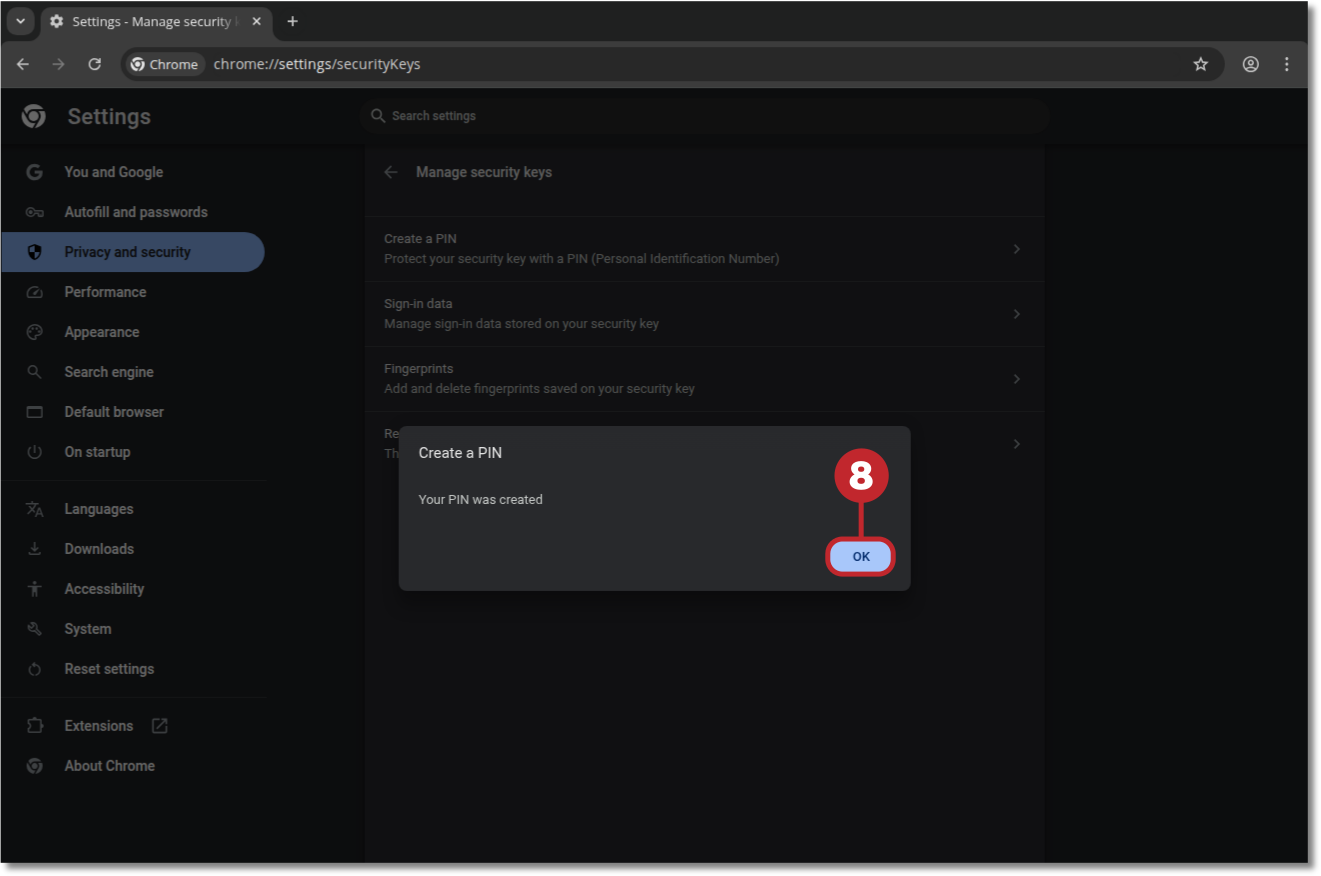
As a result, the Synera PIN will be set.
-
Changing the Synera PIN
-
To change the Synera PIN:
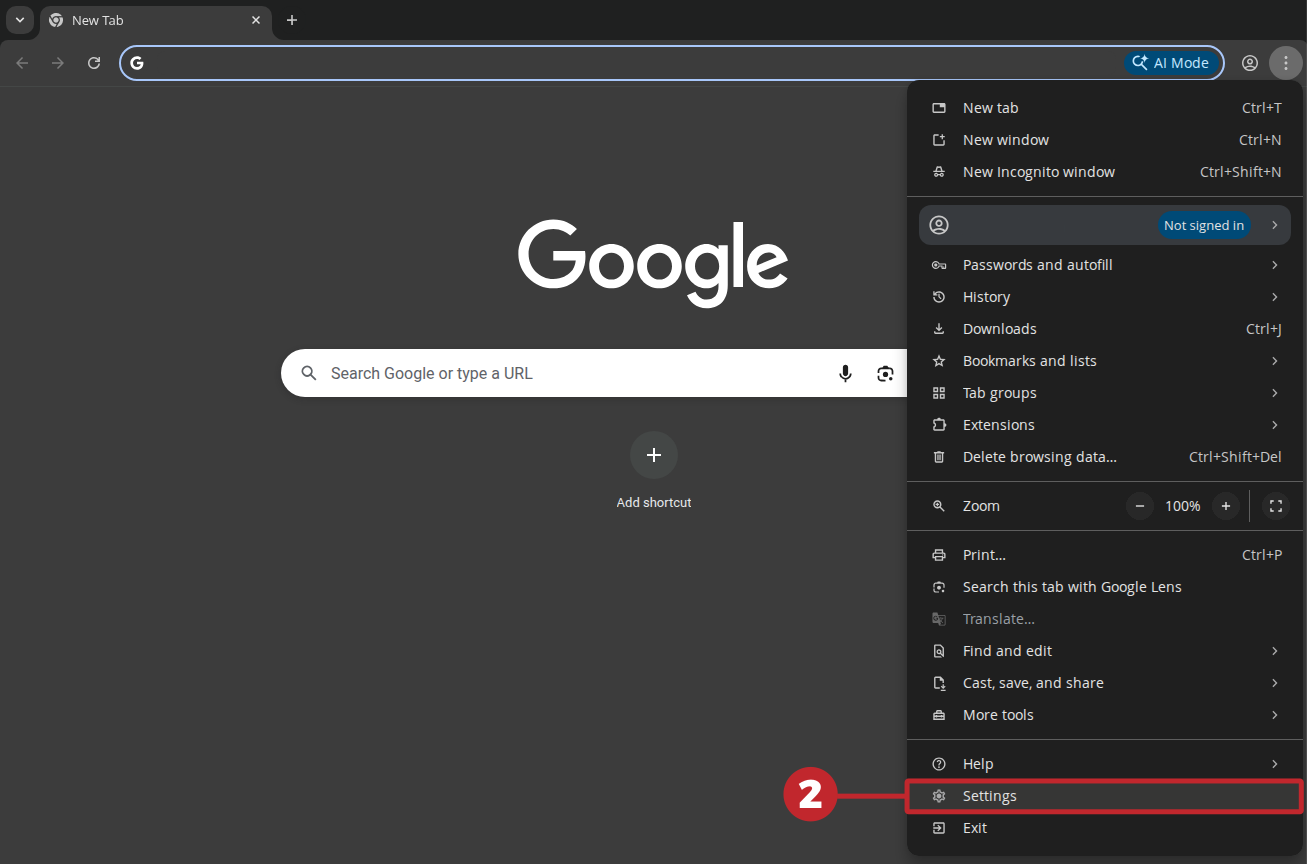
- Open Google Chrome on your computer.
- Click and navigate to Settings.
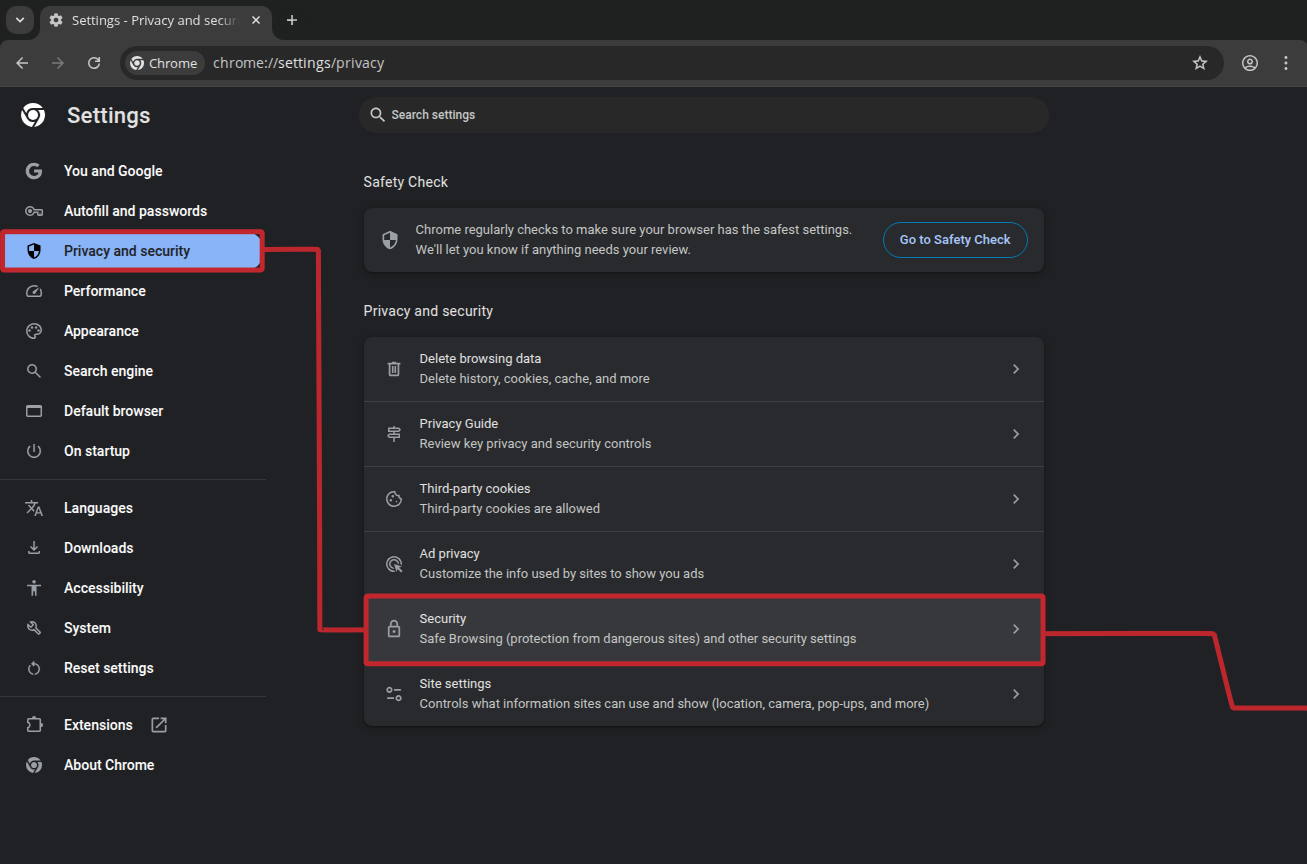
- Navigate to Privacy and Security → Security → Manage security keys.
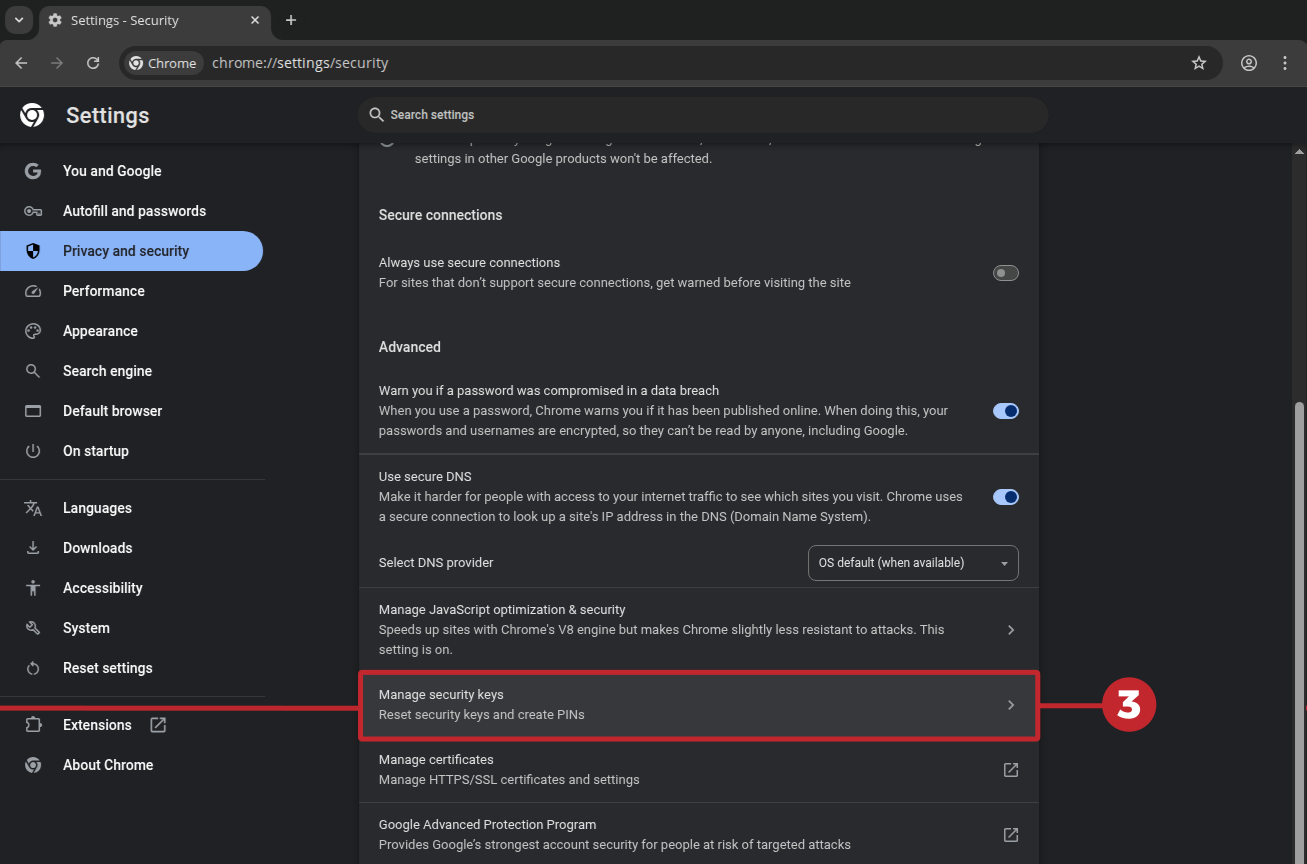
- Click Create a PIN.
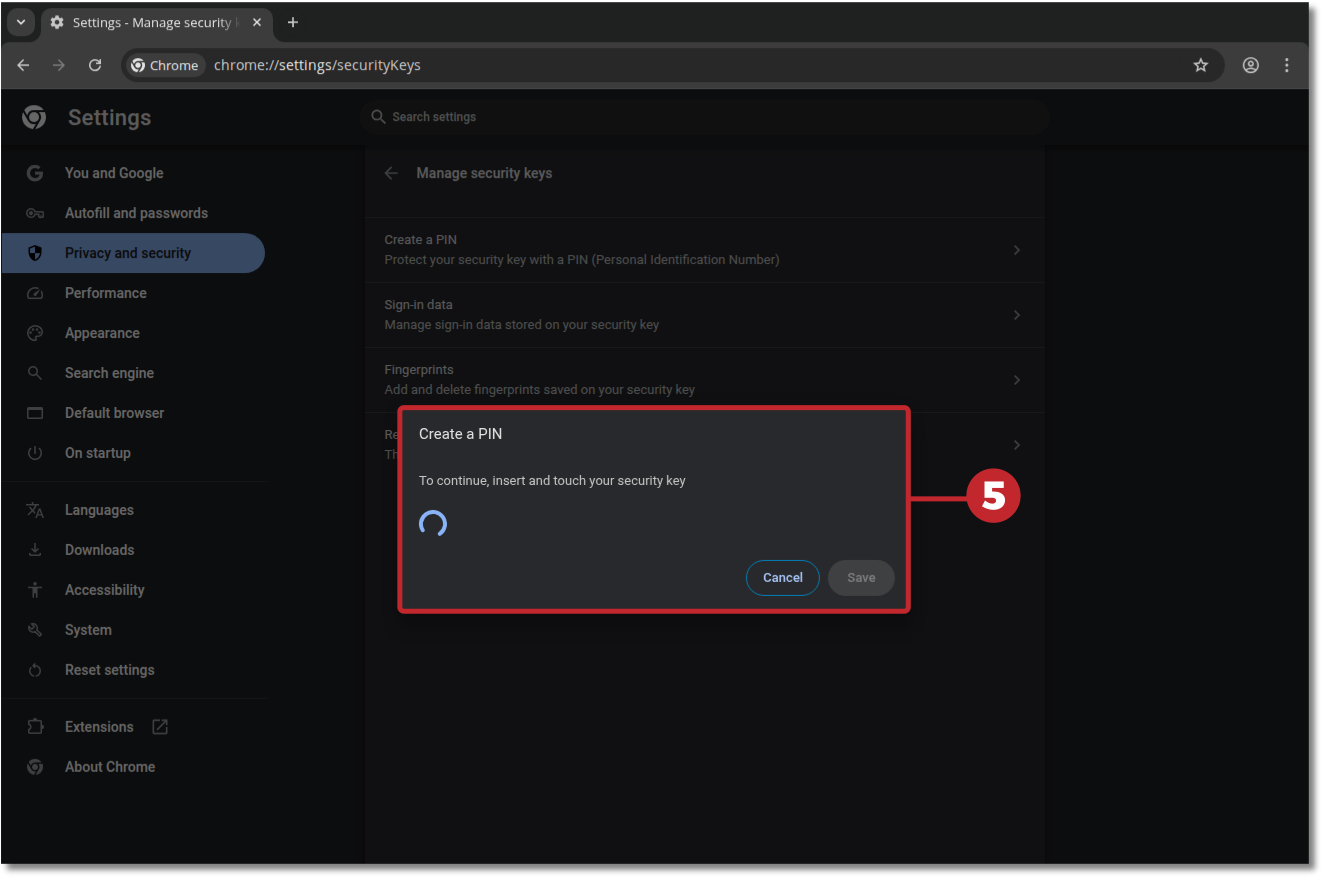
- Follow the system prompts:
- Connect the security key;
- Touch the touch-sensitive button when requested.
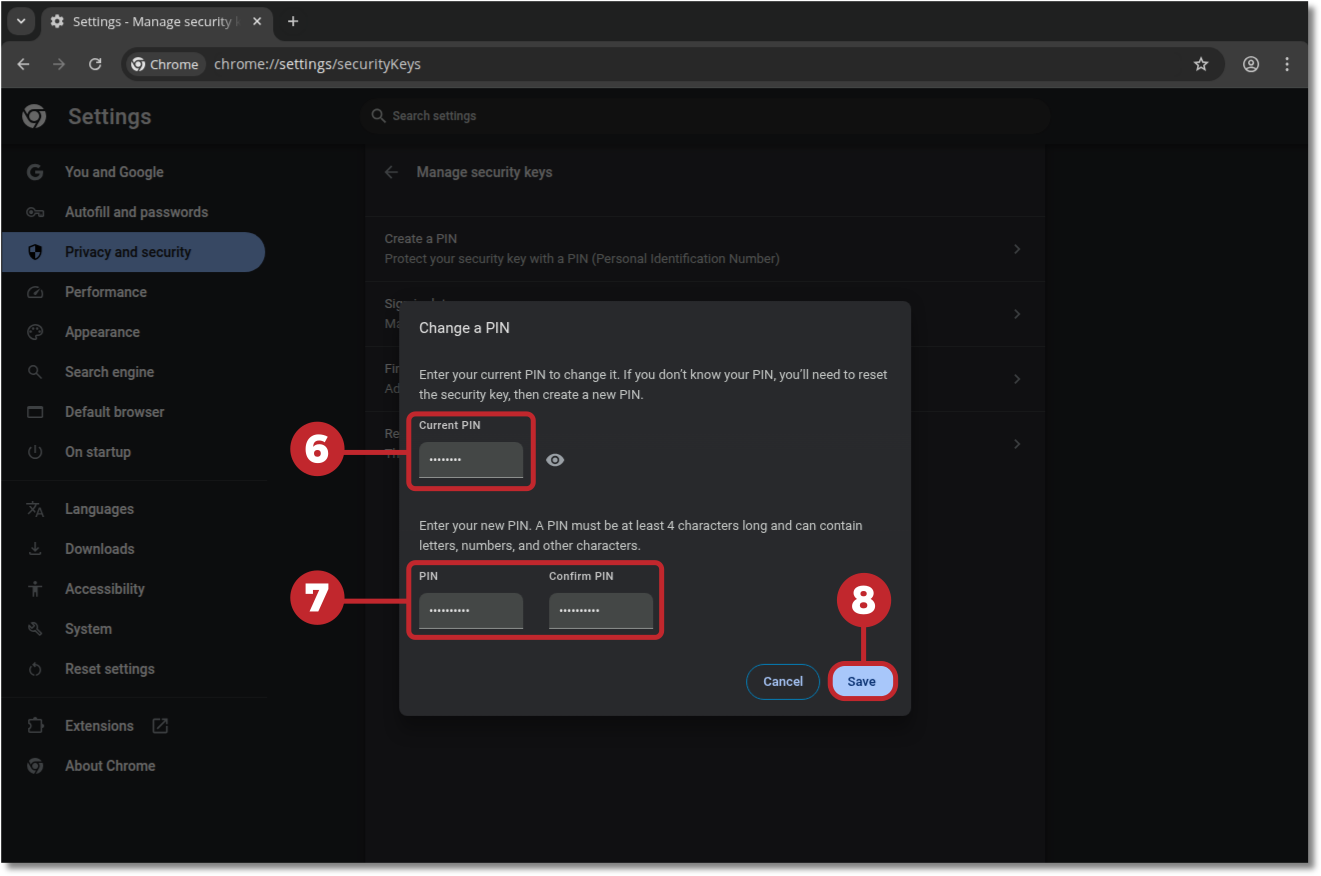
- Enter the current PIN.
- Enter the new PIN twice.
- Click Save.
- Click OK.
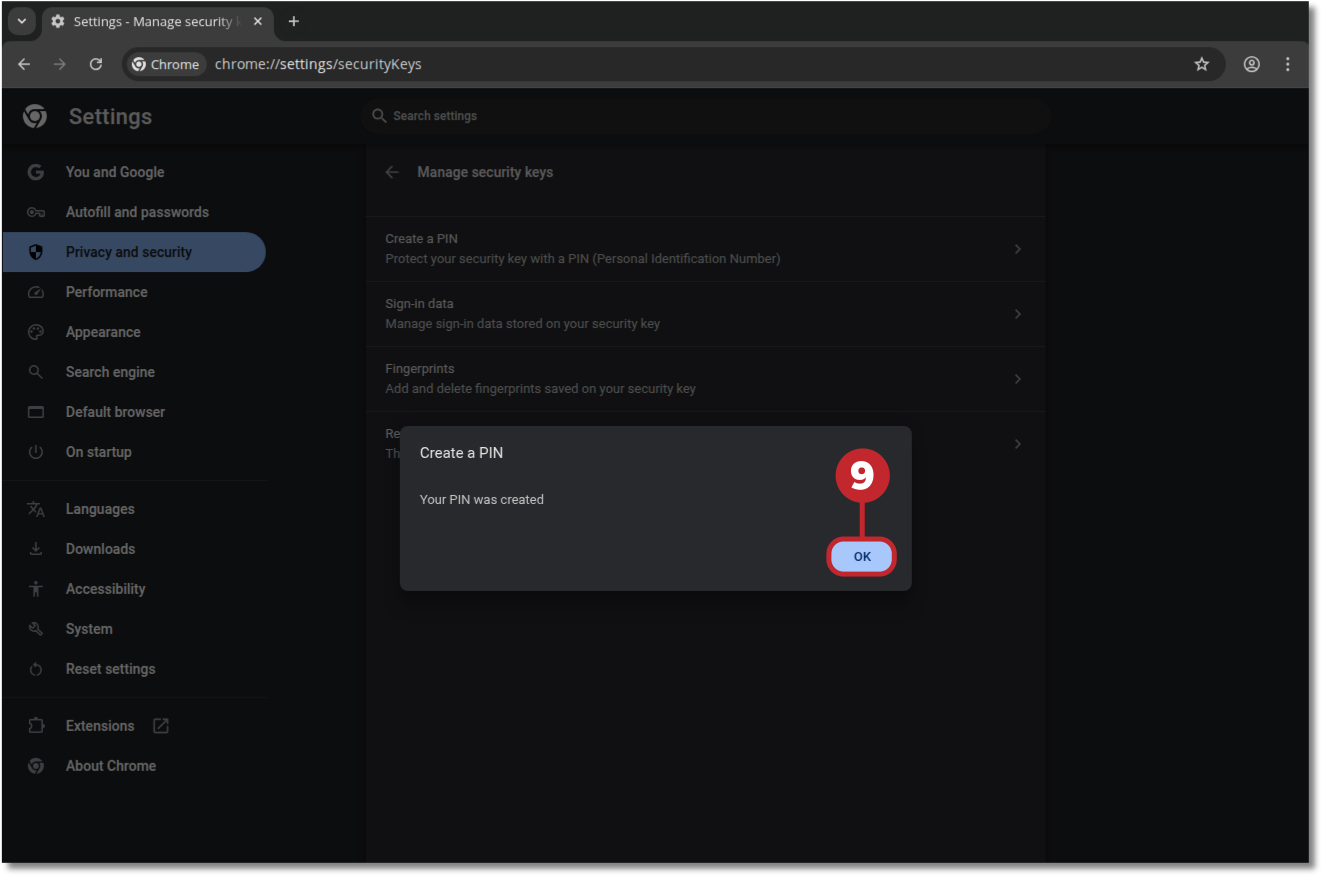
As a result, the Synera PIN will be changed.
-
Resetting the Synera F2 Key
-
Resetting the Synera F2 Key is necessary if the PIN is blocked. Resetting the Synera permanently and irrecoverably erases all credentials stored on it.
To reset the Synera F2 Key:
- Open Google Chrome on your computer.
- Click and navigate to Settings.
- Navigate to Privacy and Security → Security → Manage security keys.
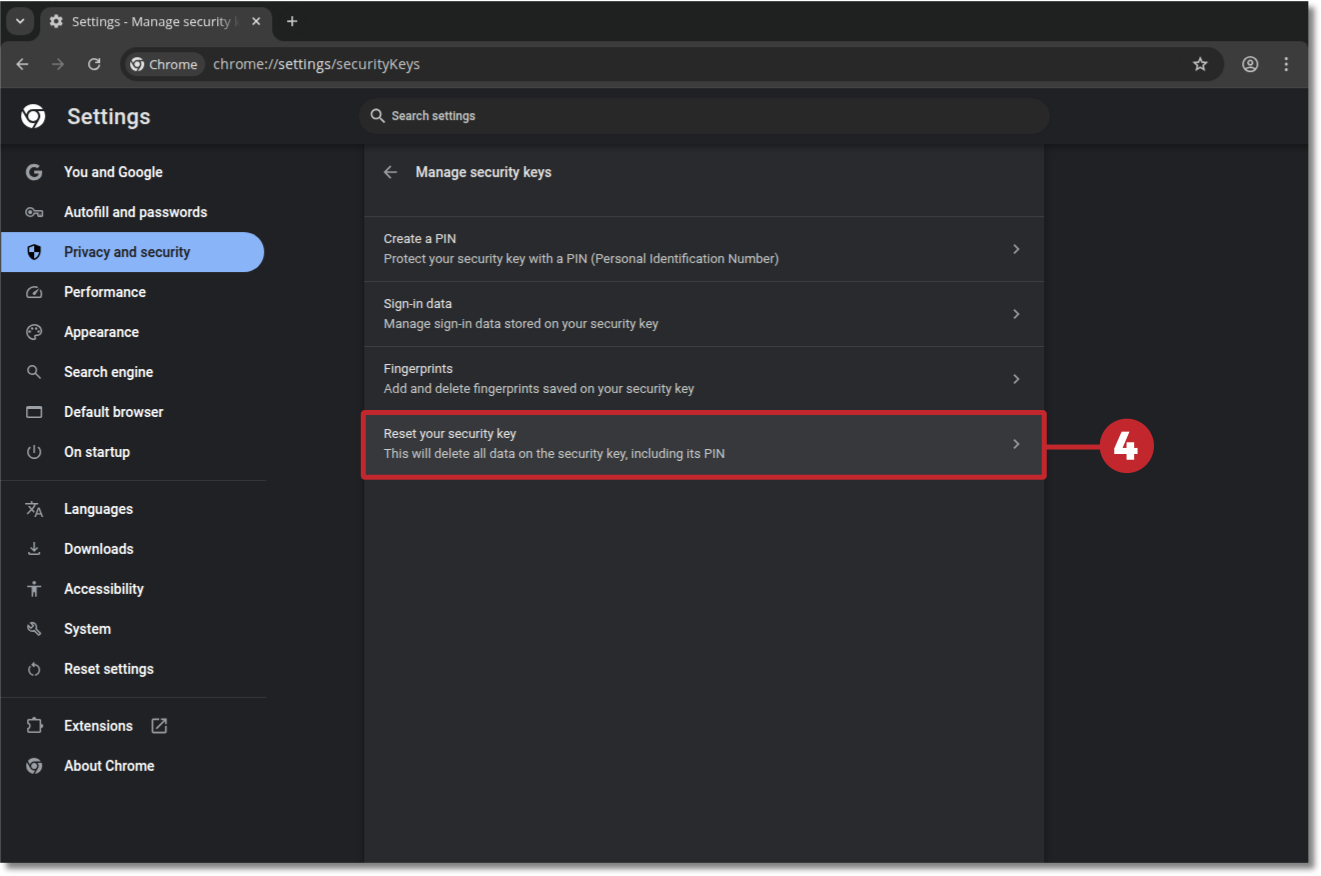
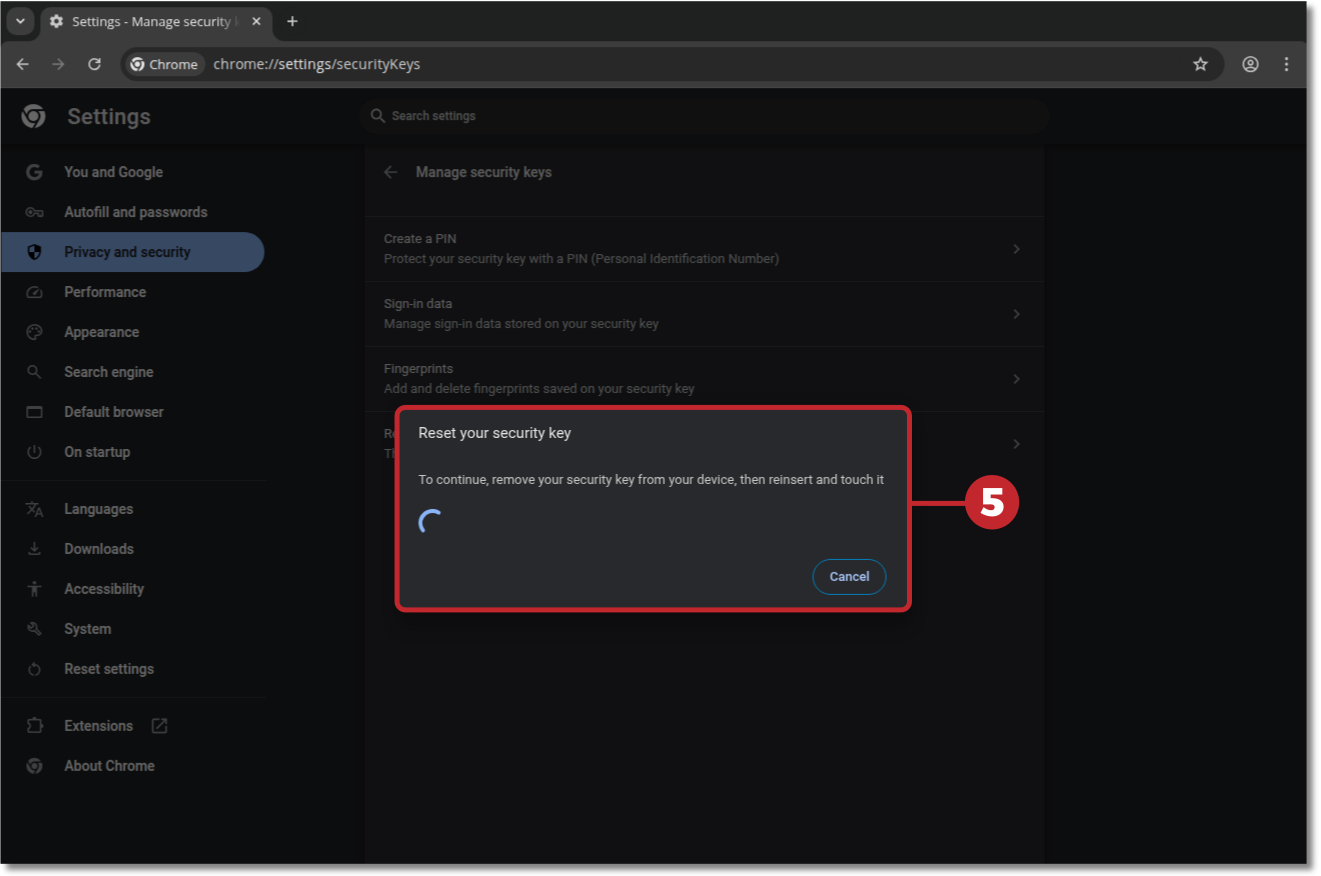
- Click Reset your security key.
- Follow the system prompts:
- Connect the security key;
- Touch the touch-sensitive button when requested.
The message "Your security key has been reset" will appear.
- Click OK.
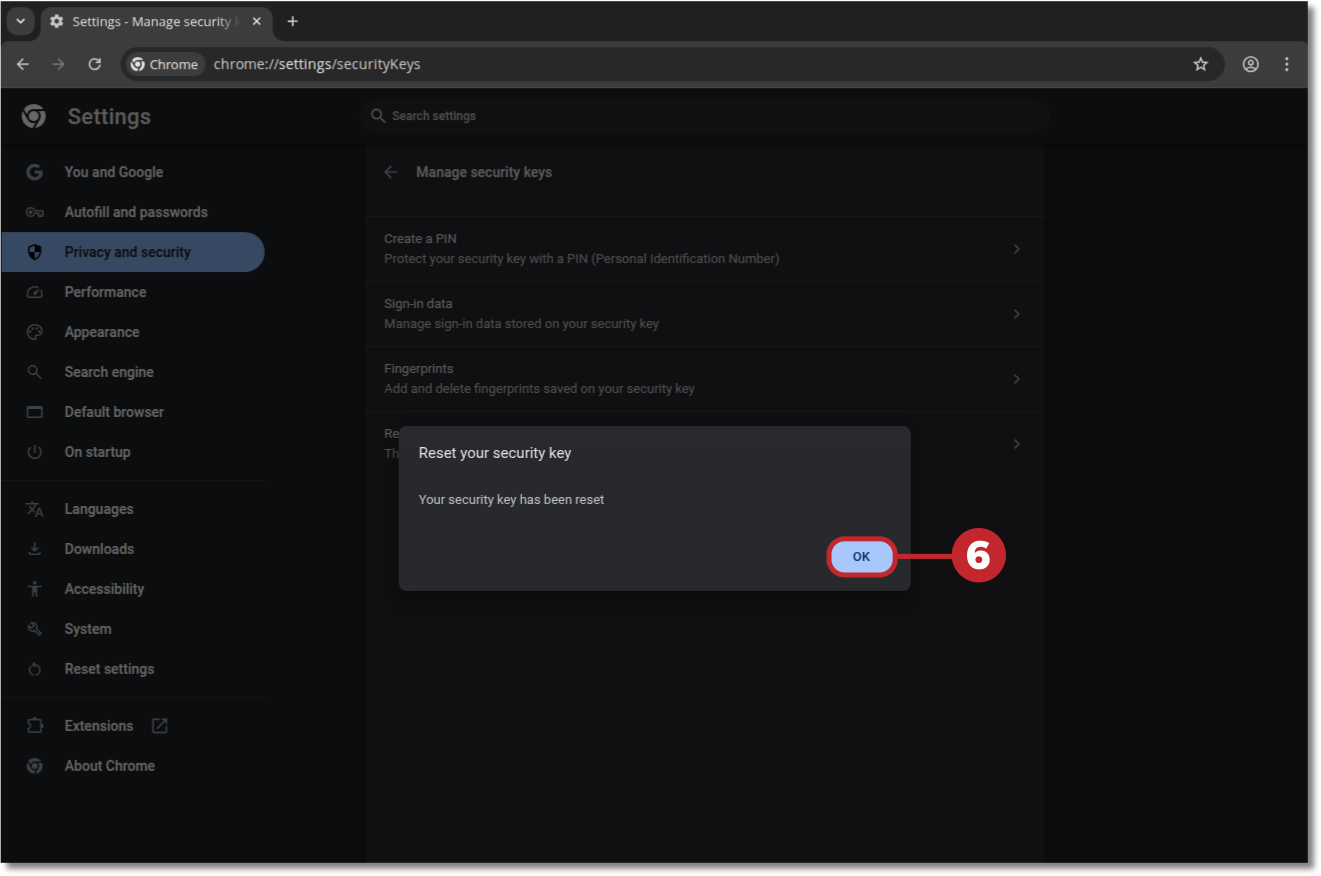
As a result, the Synera F2 Key will be reset.
Setting up 2FA and passwordless authentication with Synera F2 Key
Before you can sign into your account in another service using a security key, you first must enable two-factor or passwordless authentication in the service's settings. While each service has its own setup method, this article provides several examples to assist you in configuring your Synera F2 Key. For help setting up your keys in other services, please consult their documentation or contact technical support.
-
Google
-
Enable authentication via security keys
Authentication via security keys in Google is always passwordless — you will only need the Synera F2 Key and its PIN to sign in to your account.
- Go to myaccount.google.com/signinoptions/passkeys
- Select Create a passkey.
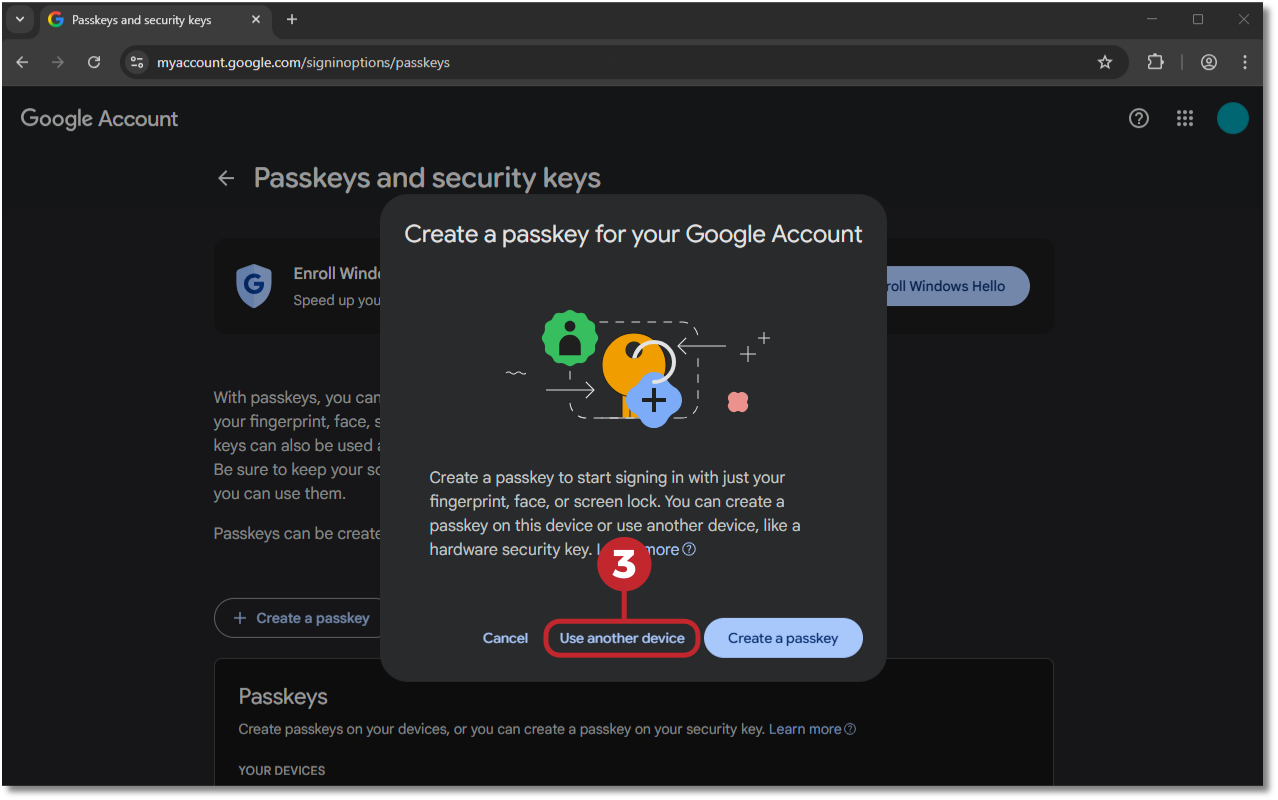
- Follow the system prompts:
- on Windows: set up the Windows Hello PIN, then return to Google Chrome and select Use another device → Security key;
- on other operating systems: select Use another device → Security key.
- Continue following on-screen instructions.
When prompted, connect the Synera F2 Key and verify your identity by entering the PIN and touching the security key.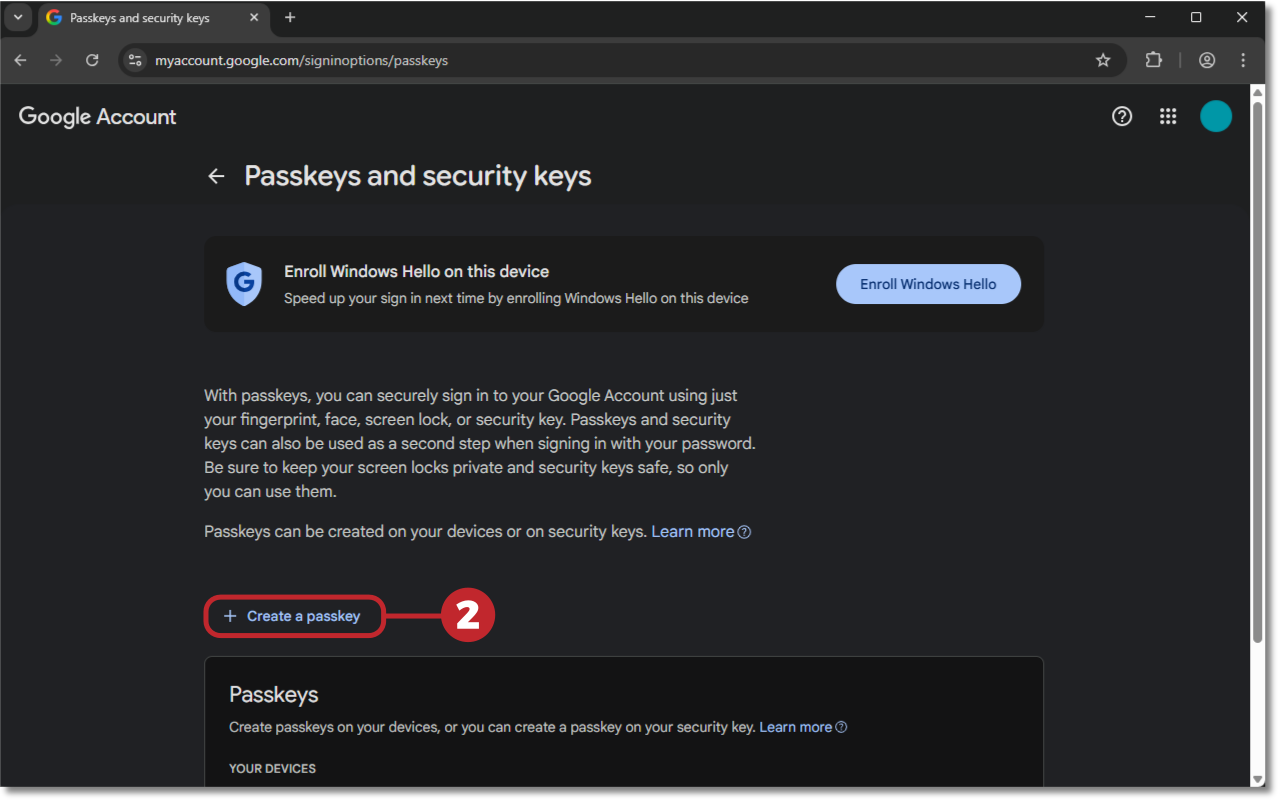
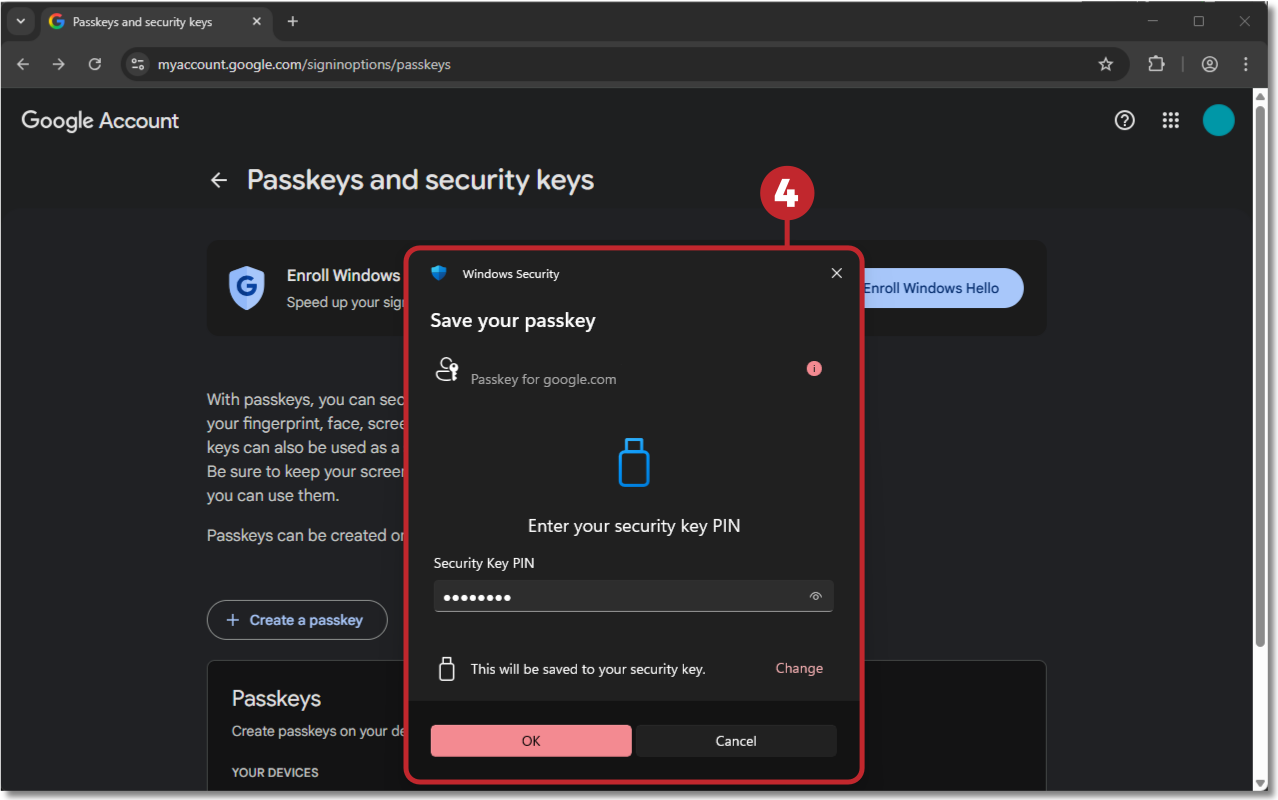
You can now use your Synera F2 key to log in to your Google account.
Sign in with a security key
- Open the Google sign in page.
- Enter your username or choose Use a passkey if prompted.
- Follow the on-screen instructions.
- When prompted, connect the Synera F2 Key and verify your identity by entering the PIN and touching the security key.
-
Apple ID
-
Enable authentication via security keys
To enable authentication via security keys in your Apple ID, you will need to set up at least two security keys so you can use one of them as a backup in case the other one is lost, damaged, or stolen. This only applies to your Apple ID account — authenticating in other services (such as Google or Instagram) from your Apple device doesn't require this additional security.
- Go to the Settings app on your device.
- Tap your name, then tap Sign-In & Security.
- Tap Two-Factor Authentication → Security Keys → Add Security Keys and follow the on-screen instructions.
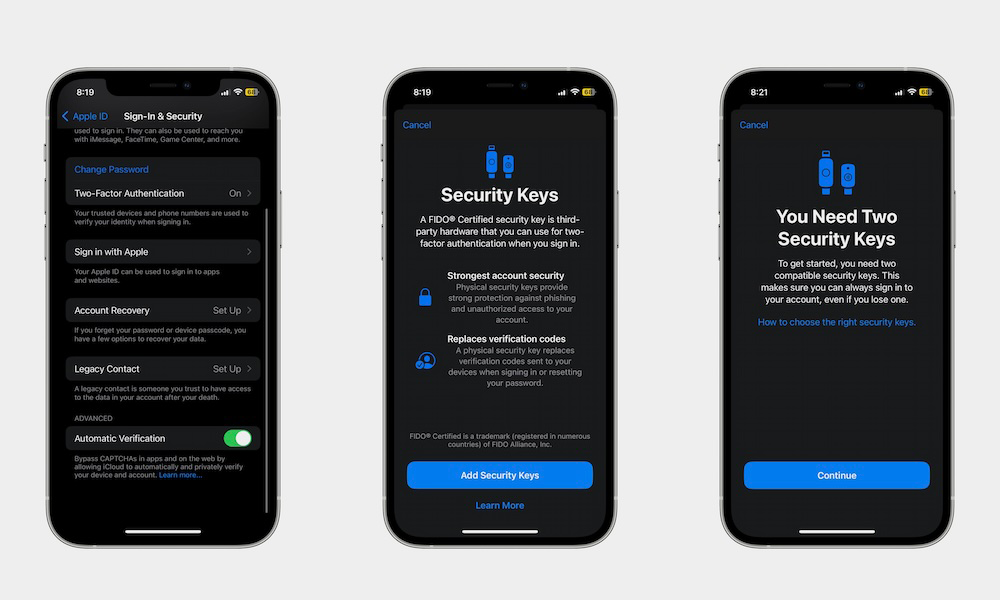
- When prompted, connect the Synera F2 Key and verify your identity by entering the PIN and touching the security key, then repeat the process for the second key.
You can now use your security key to log in to your Apple ID account.
Sign in with a security key
If you forget your Apple ID password, you can use a security key that’s paired with your account to reset it.
- Go to the Settings app on your device.
- Select Sign-in to your iPhone/iPad/Mac.
- Enter your Apple ID email address and press Continue.
- Select Sign in with Passkey.
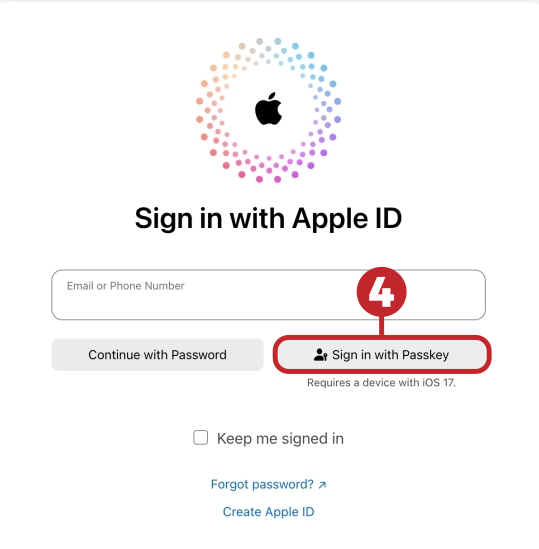
- Follow the on-screen instructions.
When prompted, connect one of the Synera F2 Keys you have set up earlier and verify your identity by entering the PIN and touching the security key.
-
Dropbox
-
Enable authentication via security keys
- Log in to dropbox.com.
- Click your avatar and go to Settings → Security.
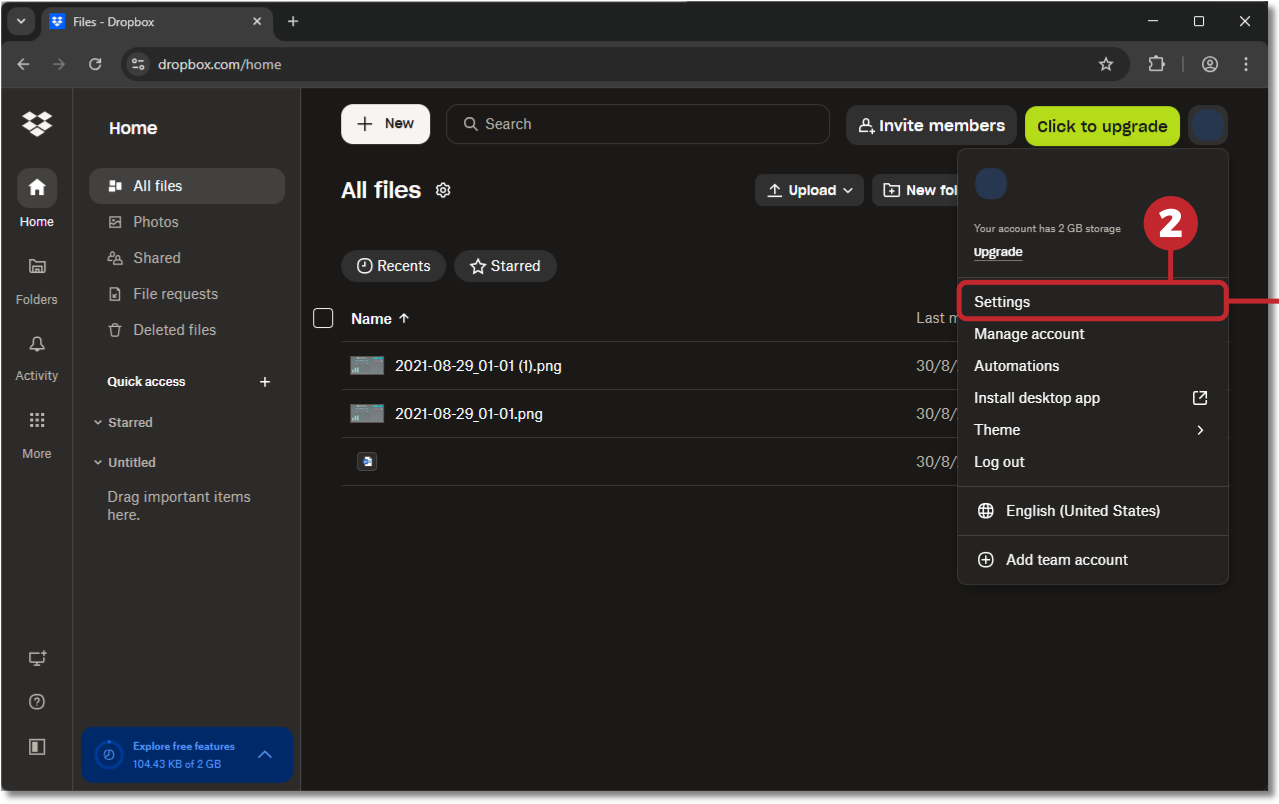
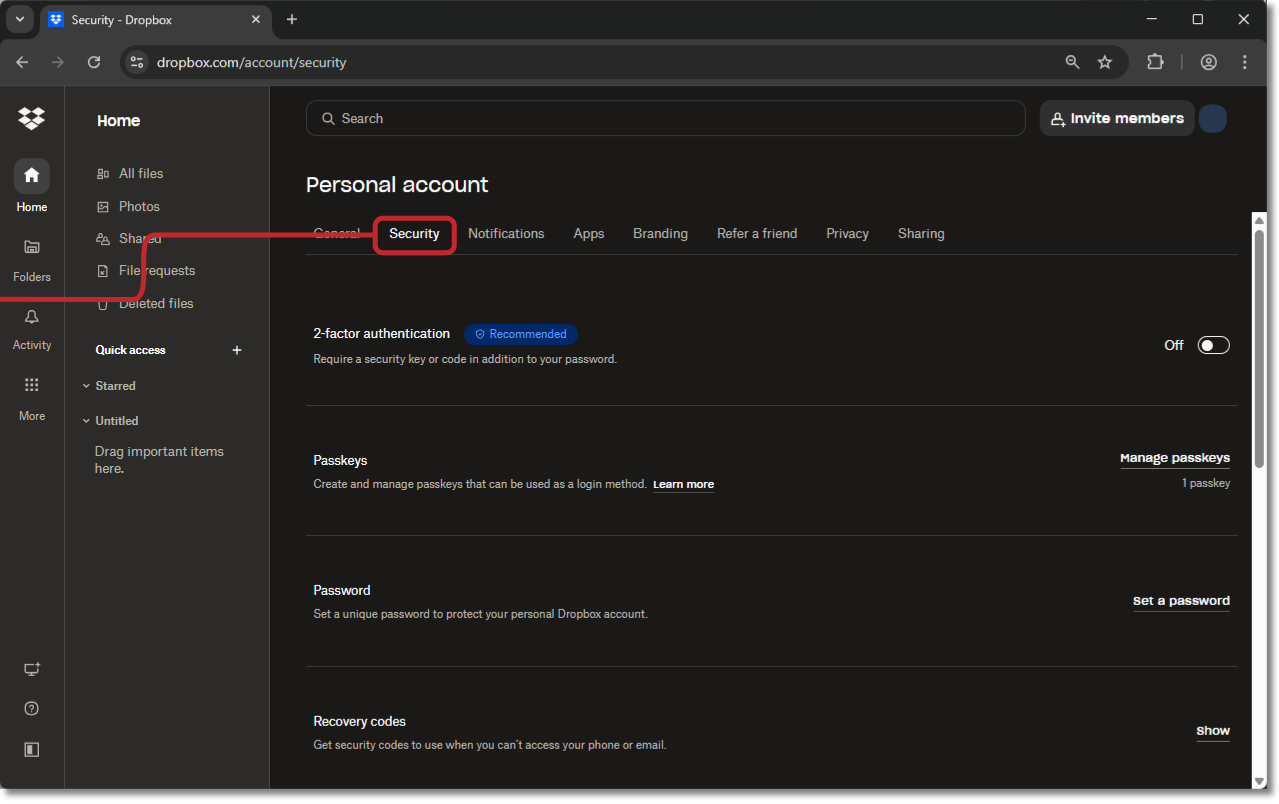
- Under Passkeys, select Add passkey.
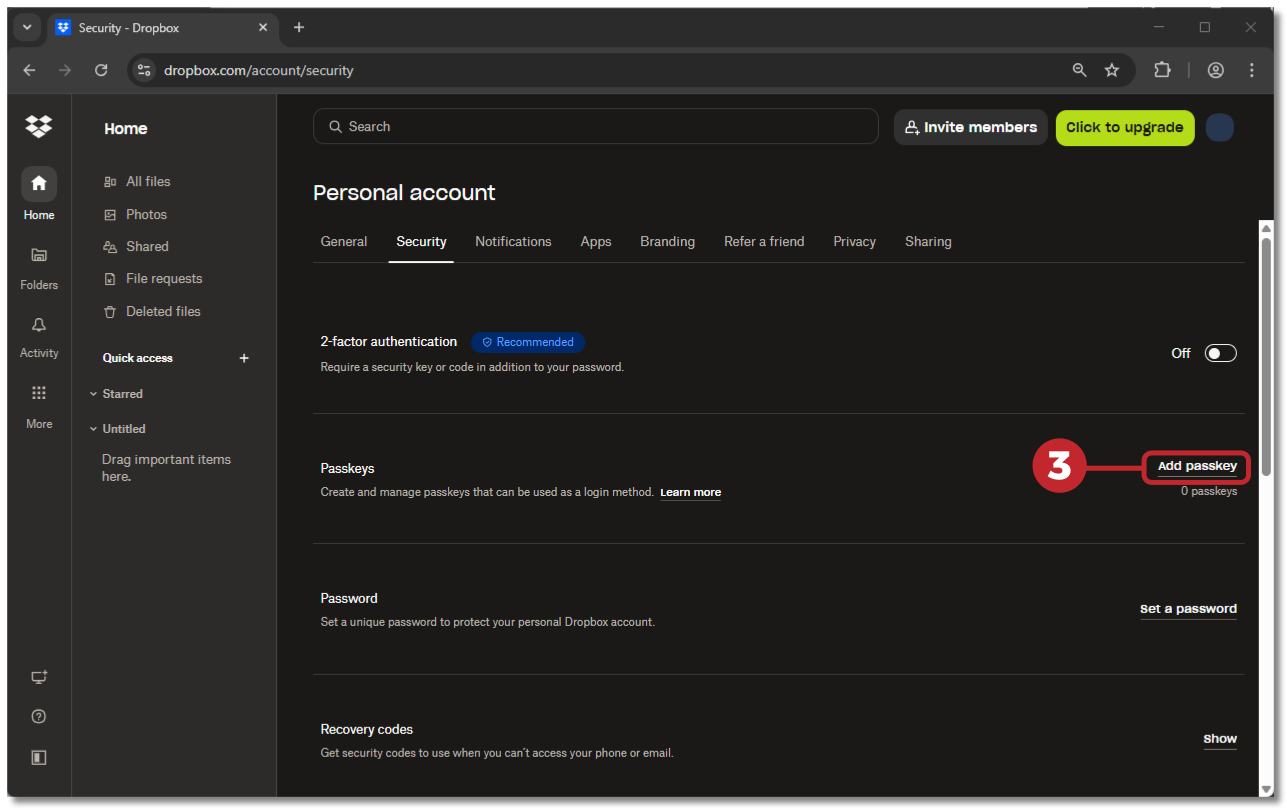
- Confirm your identity on Dropbox and click Next.
- Follow the on-screen instructions. If asked where to save the passkey, select Use another device → Security key.
When prompted, connect the Synera F2 Key and verify your identity by entering the PIN and touching the security key. - Click Save.
You can now use your Synera F2 key to log in to your Dropbox account.
Sign in with a security key
Authentication via security keys is only available in the browser version of Dropbox.
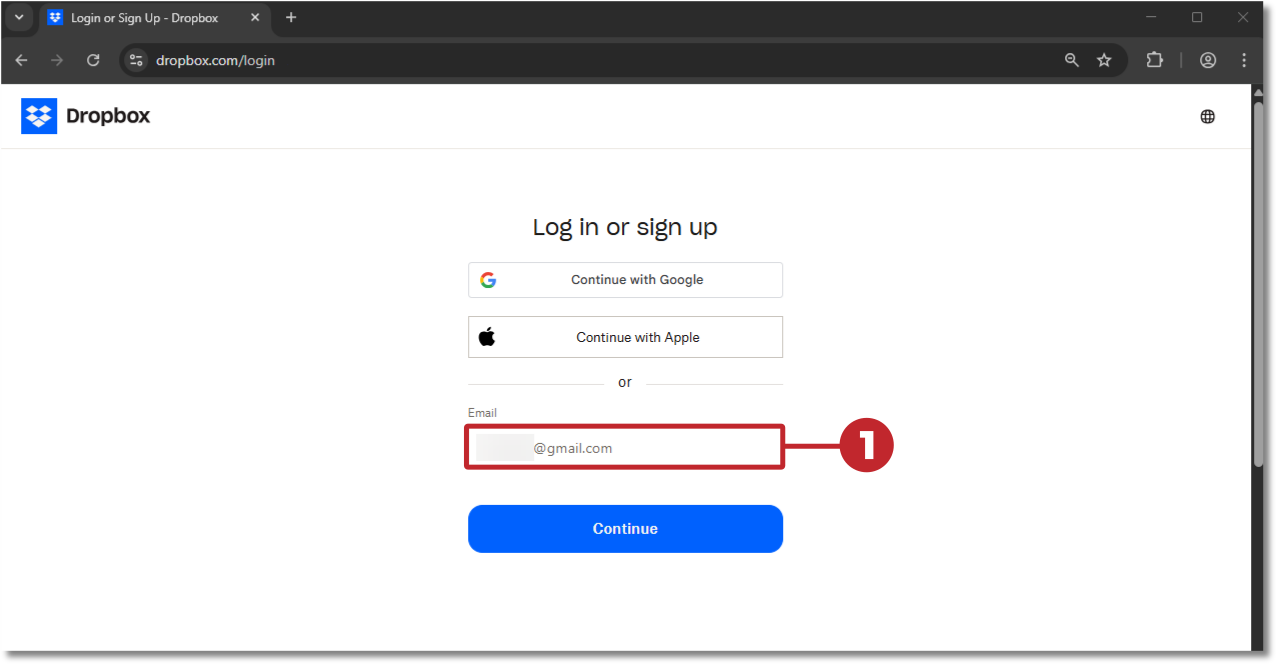
- Enter your email address and click Continue.
- On the next page, select Use your passkey.
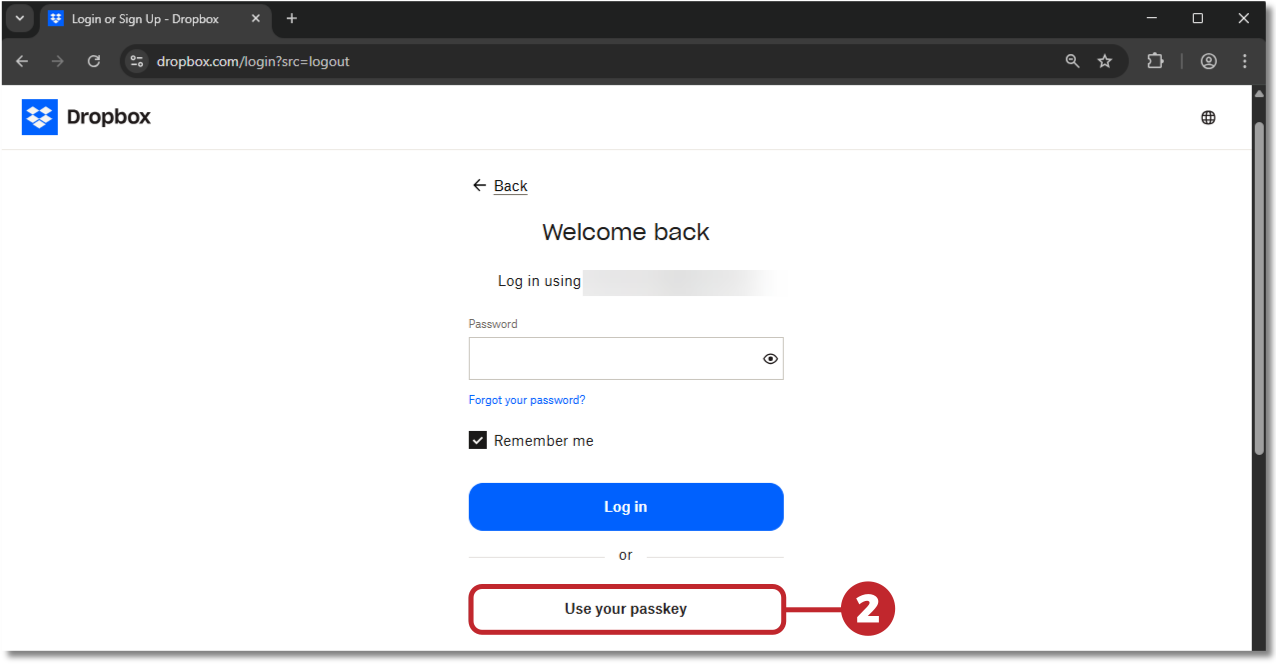
- Follow the on-screen instructions.
When prompted, connect the Synera F2 Key and verify your identity by entering the PIN and touching the security key.
-
Microsoft
-
Enable authentication via security keys
- Sign in to your Microsoft account.
- Go to Advanced Security Options at https://account.live.com/proofs/manage/.
- Choose Add a new way to sign in or verify.
- Select Face, Fingerprint, PIN, or Security Key.
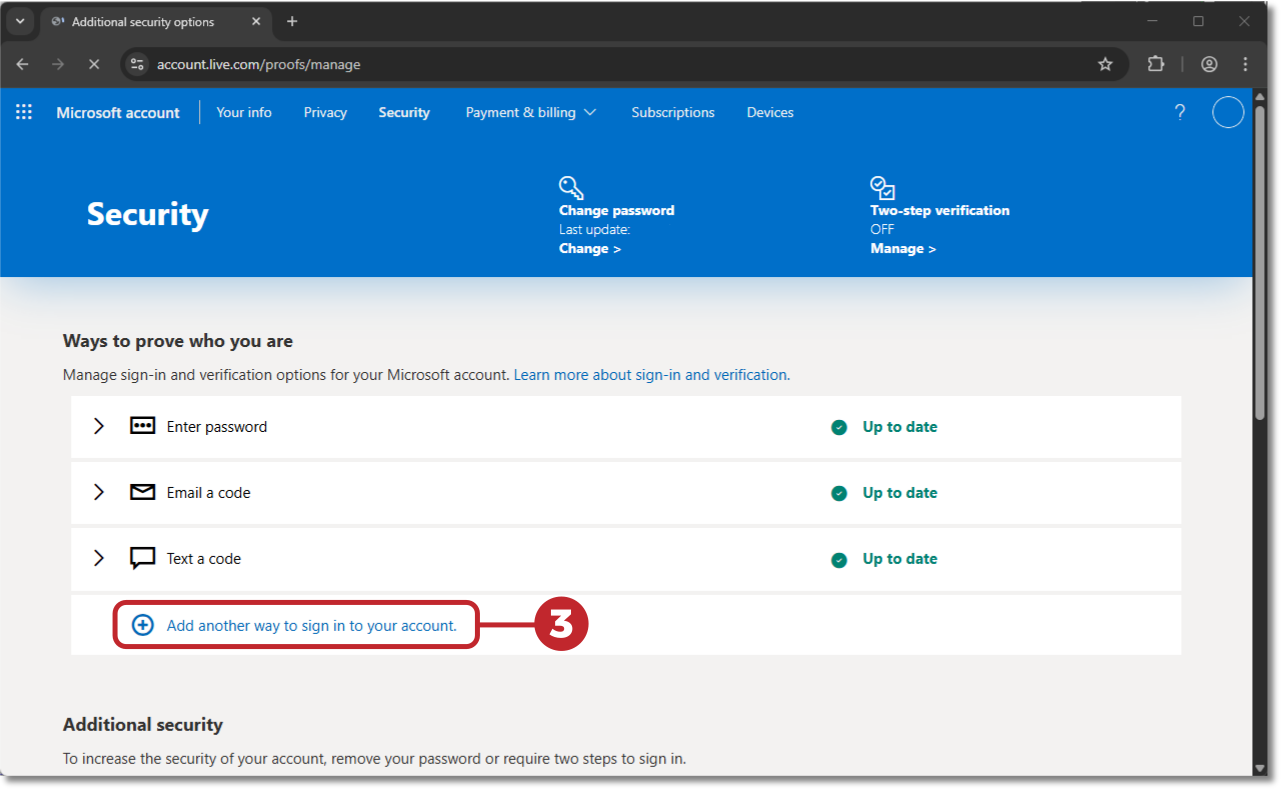
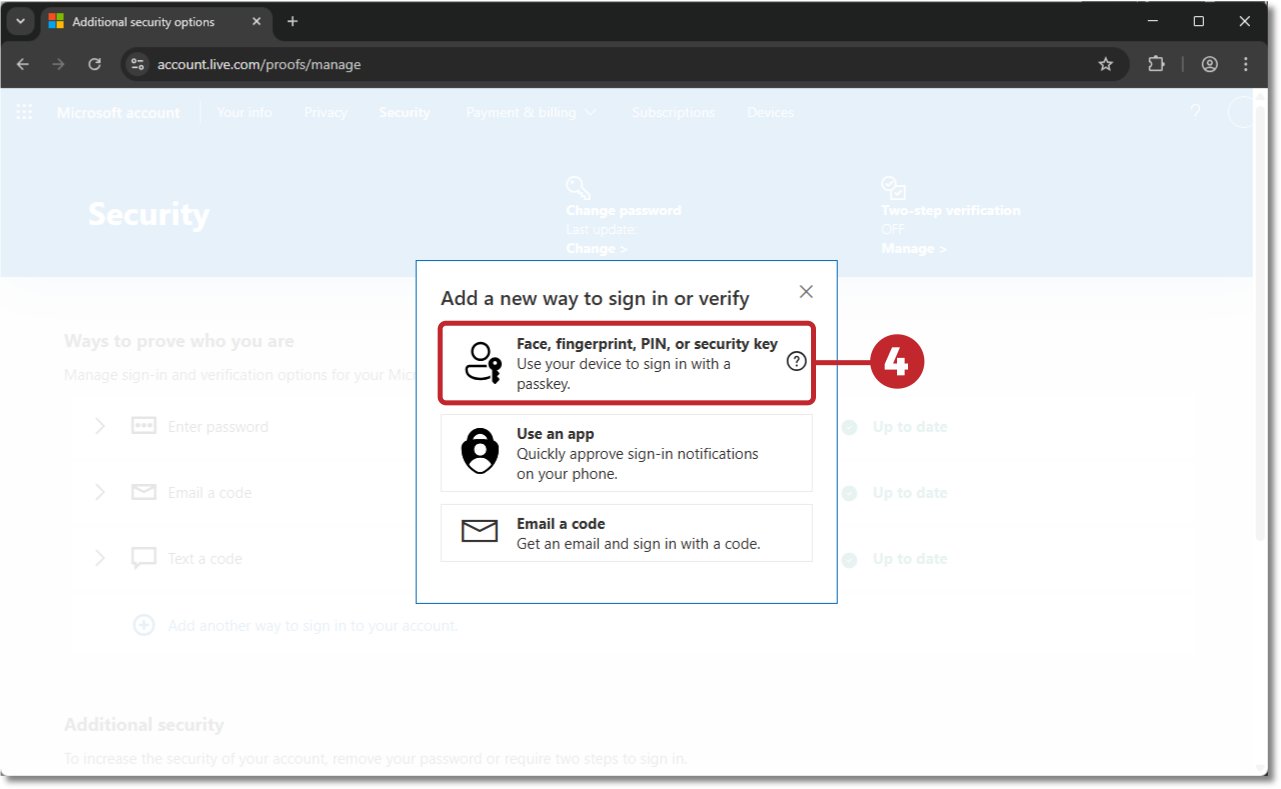
- Follow the on-screen instructions. If asked where to save the passkey, select Use another device → Security key.
When prompted, connect the Synera F2 Key and verify your identity by entering the PIN and touching the security key. - Name the passkey and click Next.
- Click OK.
You can now use your Synera F2 key to log in to your Microsoft account.
Sign in with a security key
- Go to the sign in page at https://login.microsoftonline.com/.
- Choose Sign-in options or Other ways to sign in.
- Select Face, Fingerprint, PIN, or Security Key.
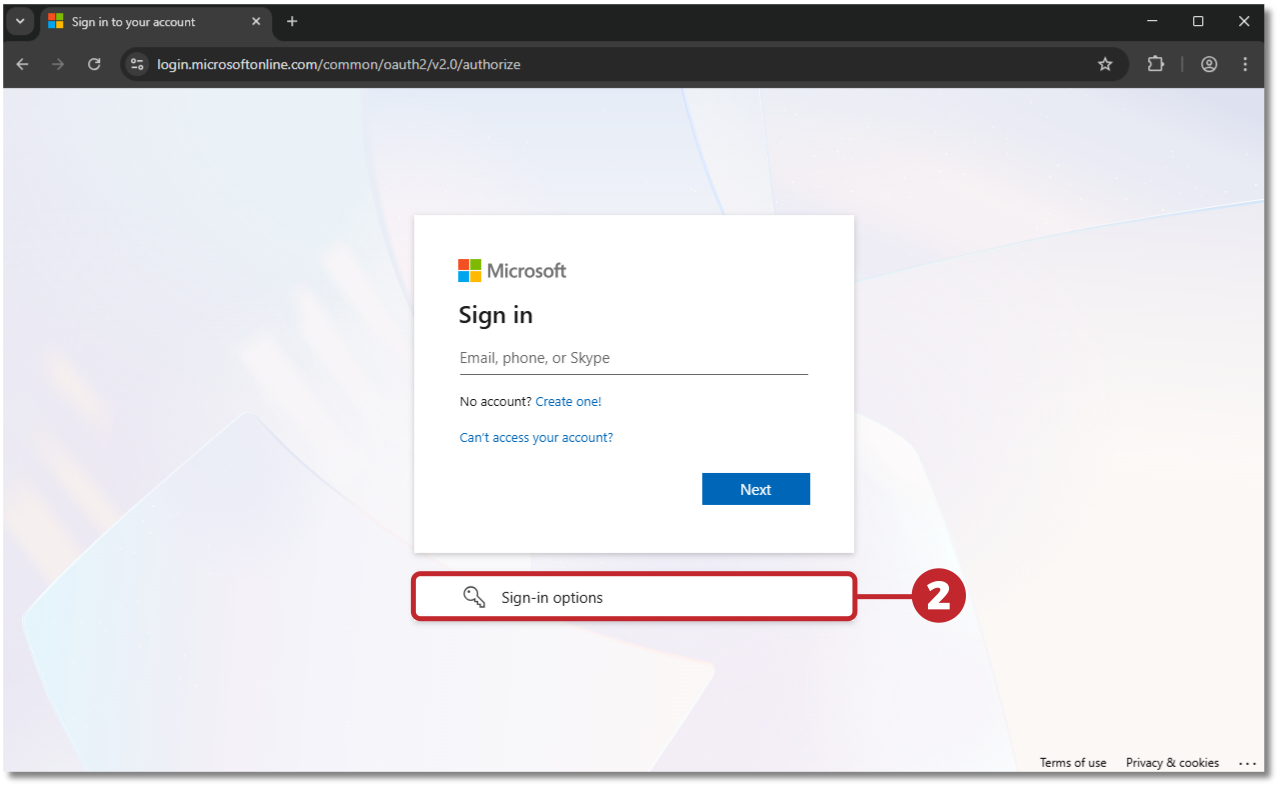
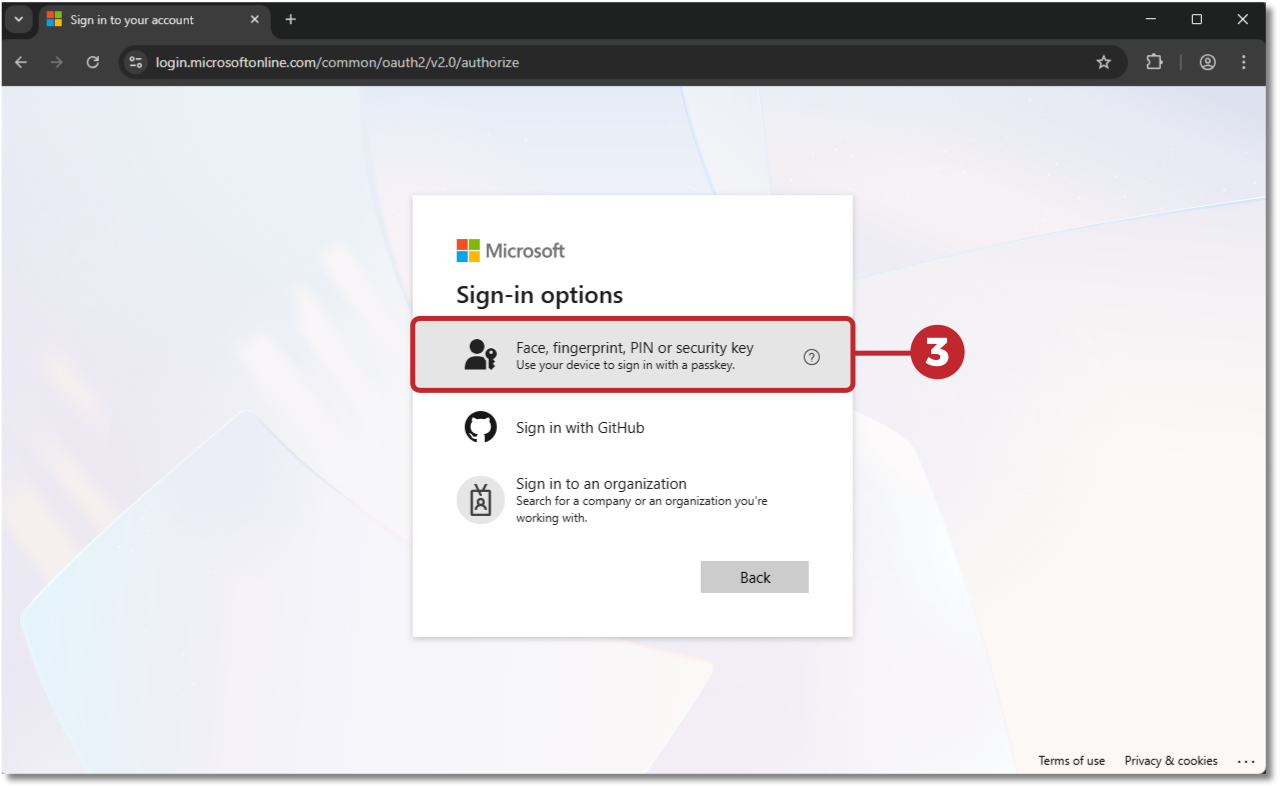
- Follow the on-screen instructions.
When prompted, connect the Synera F2 Key and verify your identity by entering the PIN and touching the security key.
-
Meta (Facebook, Instagram)
-
Authentication via security keys is only available in the mobile versions of Meta apps.
Enable authentication via security keys
- Log in to your account in any of the Meta apps.
- Go to your profile and navigate to Settings → Settings & Privacy.
- Navigate to Accounts Center → Password and security.
- Select Passkey.
- Select Create passkey.
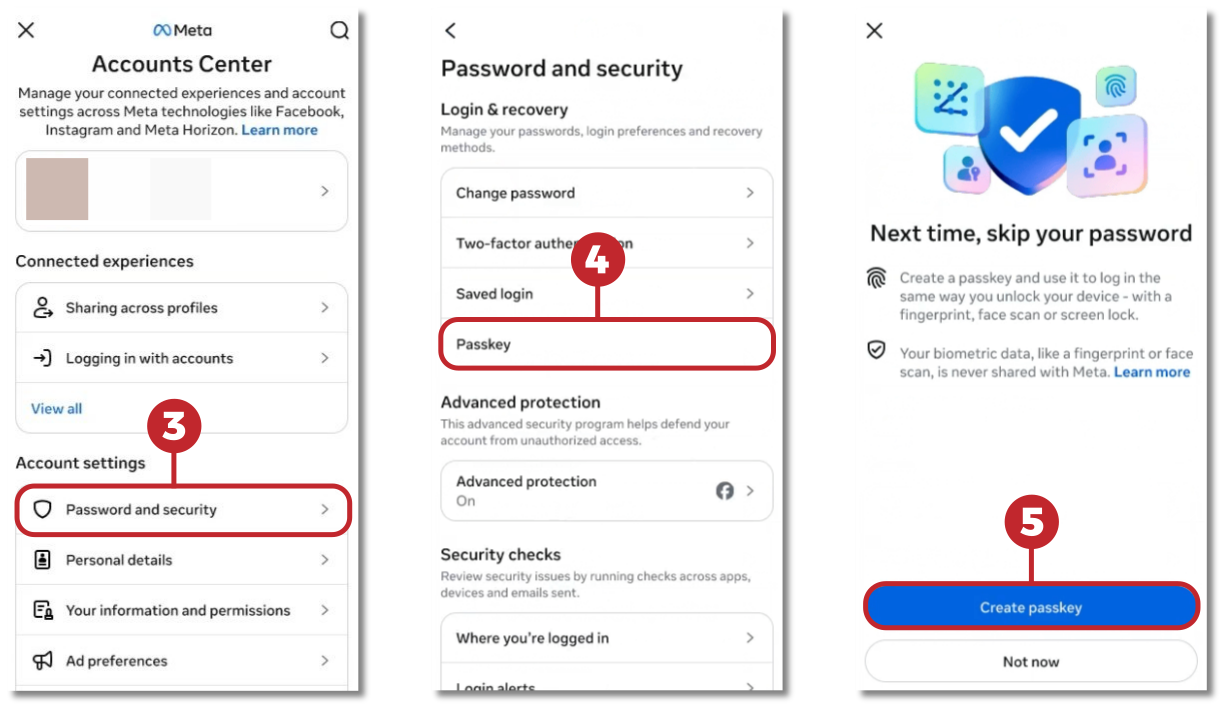
- Follow the on-screen instructions. If asked where to save the passkey, select Use another device → Security key.
When prompted, connect the Synera F2 Key and verify your identity by entering the PIN and touching the security key.
You can now use your Synera F2 key to log in to your Meta account.
Sign in with a security key
- Connect your Synera F2 key to the mobile device.
- Open the Meta app you want to log in to and select your account. You will be automatically prompted to use a passkey.
- Follow the on-screen instructions. If asked where to save the passkey, select Use another device → Security key.
When prompted, connect the Synera F2 Key and verify your identity by entering the PIN and touching the security key.
Synera F2 Key product line
The Synera F2 Key series devices are equipped with a touch-sensitive button and an LED indicator. The touch button on the case is used to confirm the physical presence of the user.
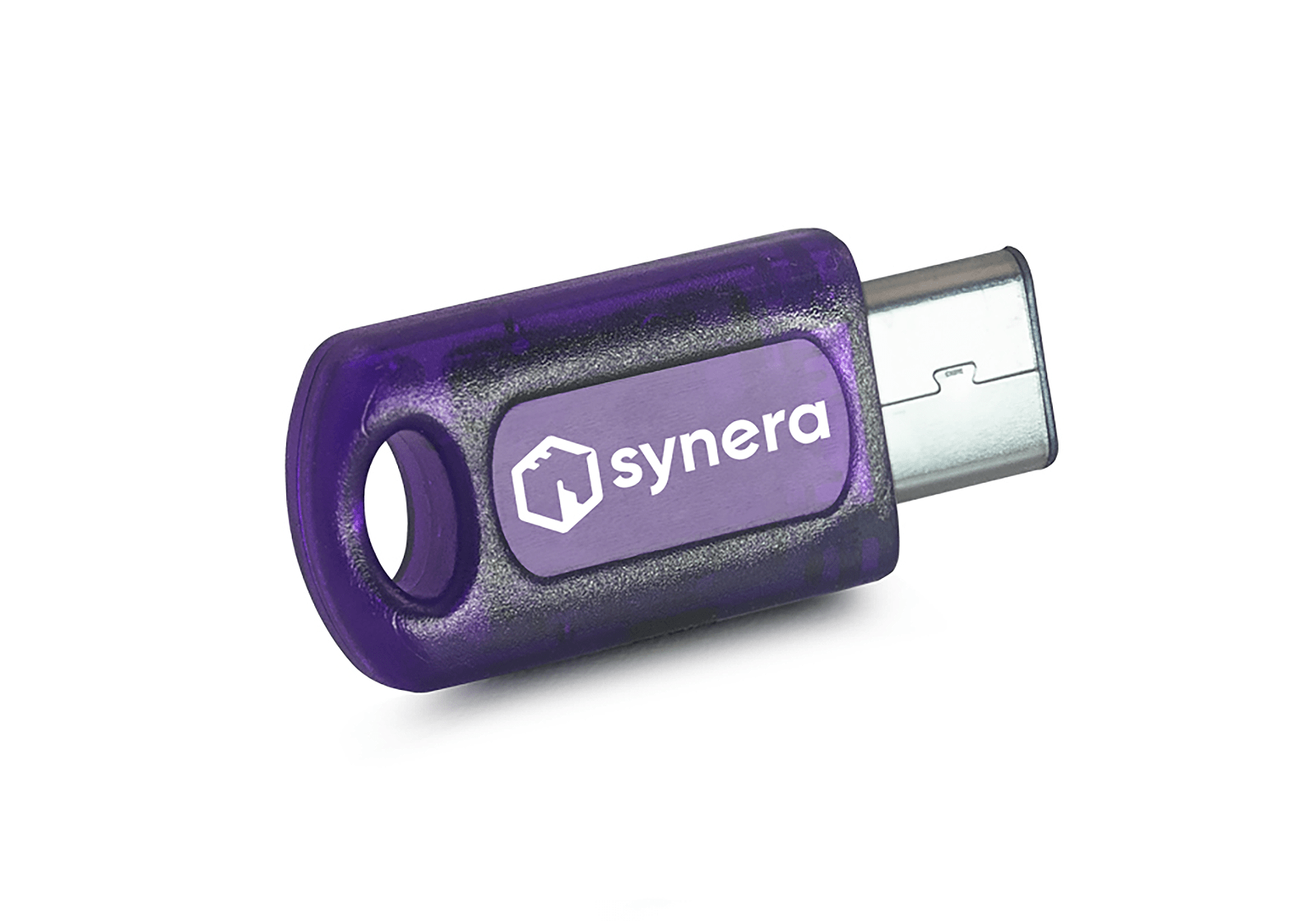
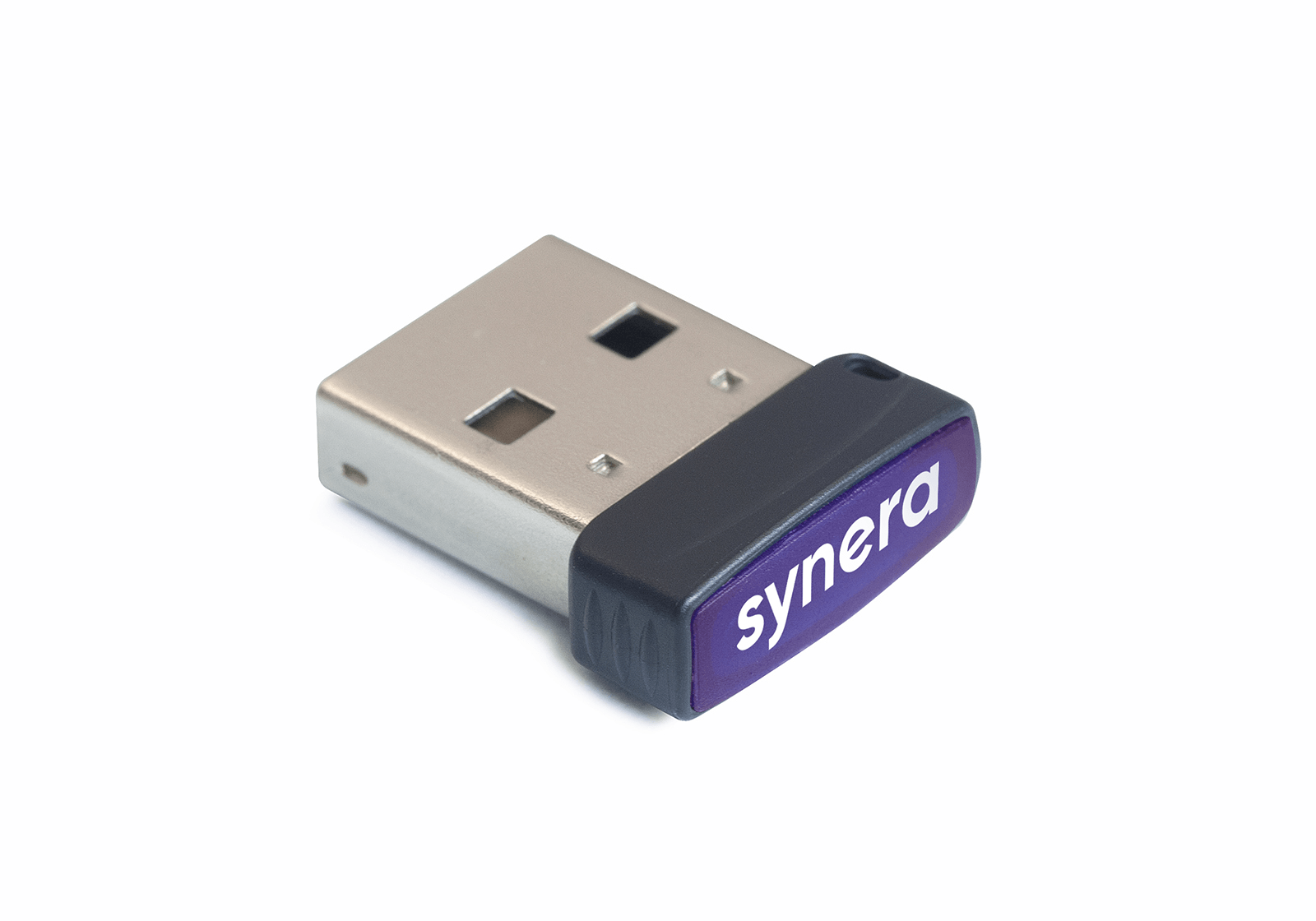
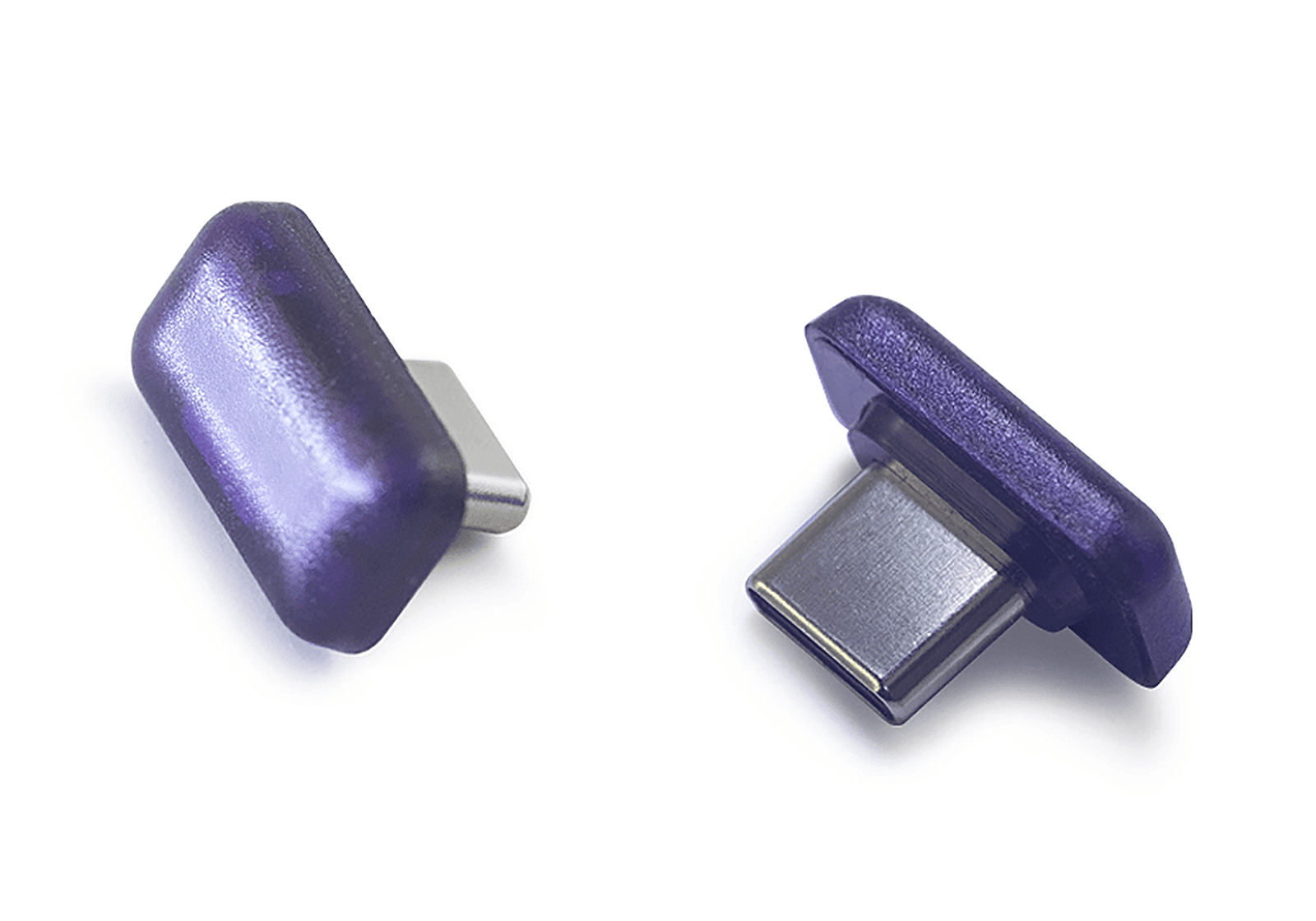
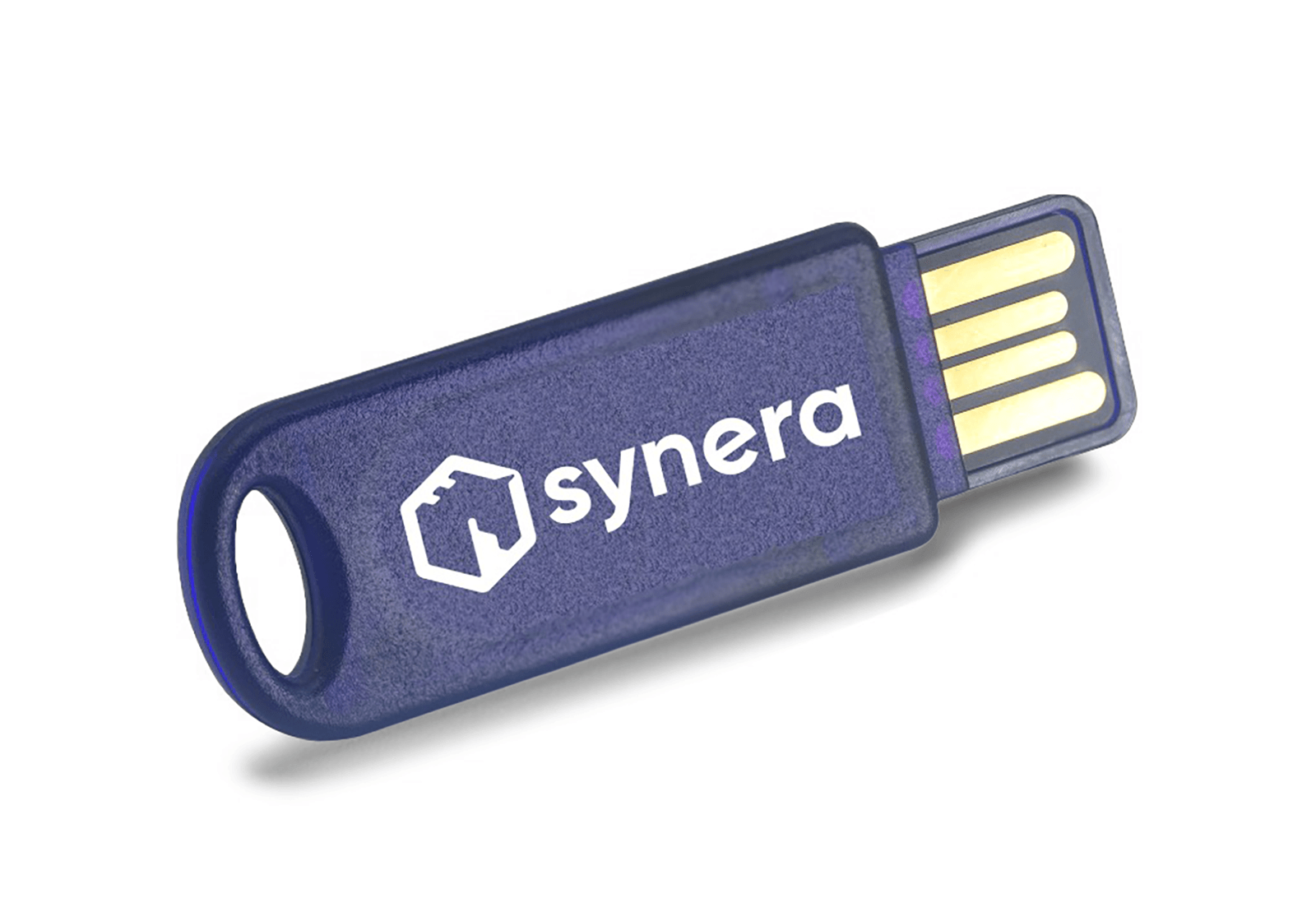
The Synera F2 Key product line consists of five products:
-
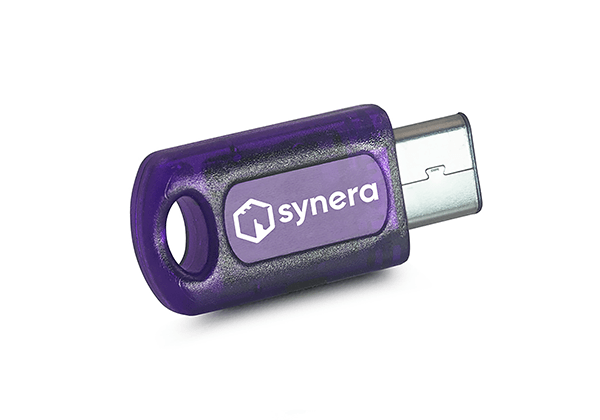
Synera F2 Type-C
- USB Type-C
- 29.5 х 13 х 6mm, 3g
- Serial number (ID) located on the
side of the case - Download PDF
-
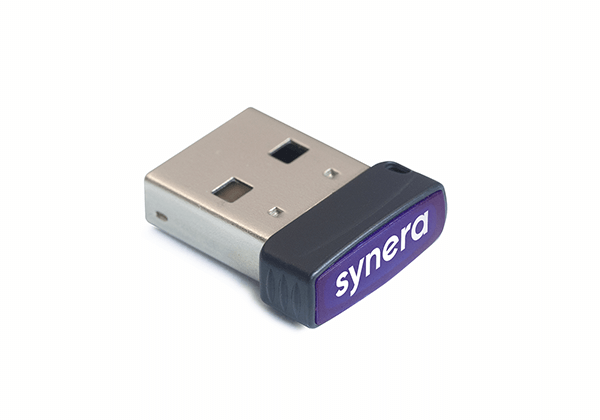
Synera F2 Micro
- USB Type-A
- 17.8 х 15.4 х 5.8 mm, 1.6 g
- Serial number (ID) located on the
metal part of the connector - Download PDF
-
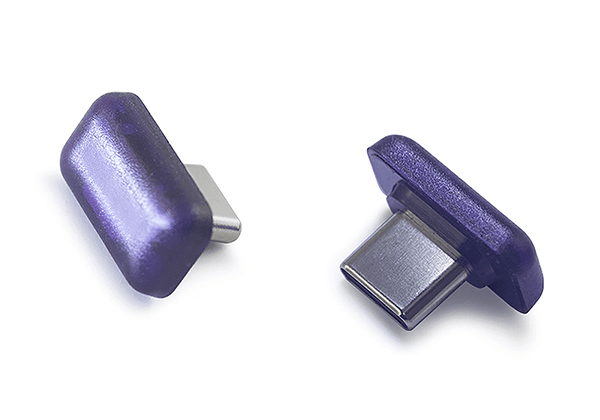
Synera F2 Nano
- USB Type-C
- 11 х 16 х 8 mm, 1.5 g
- Serial number (ID) located on the
metal part of the connector - Download PDF
-
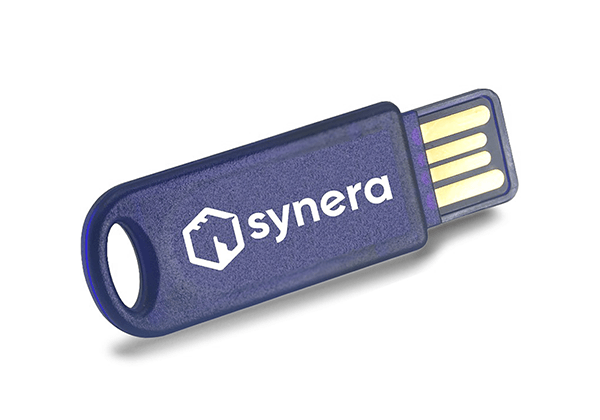
Synera F2 NFC
- USB Type-A, NFC
- 12 х 46 х 2 mm, 2.5 g
- Serial number (ID) located on the
side of the case - Download PDF
-
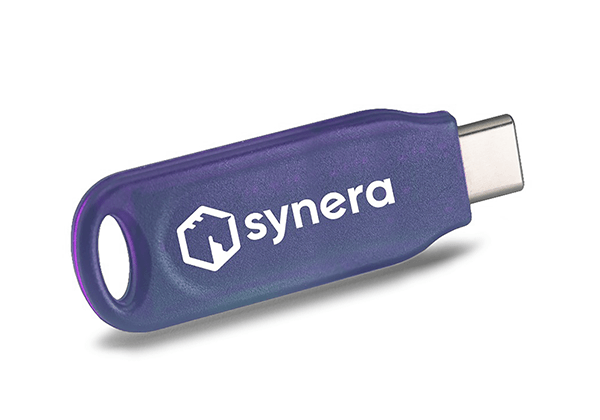
Synera F2 С NFC
- USB Type-C, NFC
- 12 х 46 х 2 mm, 2.7 g
- Serial number (ID) located on the
side of the case - Download PDF
Key characteristics of the product line
All devices in the product line support:
- FIDO2 standard (latest FIDO 2.1/CTAP 2.1 specification implementation);
- ES256 signature algorithm (ECC P256);
- U2F protocol (CTAP 1.2);
- One-factor authentication for 16 accounts per token.
About FIDO2
Authentication with the Synera F2 Key devices complies with the FIDO2 standard. This standard provides enhanced security through public-key cryptography. Synera F2 Key supports resident credentials storage, enabling true passwordless authentication on WebAuthn-compatible sites and applications since these credentials may contain usernames and other authentication data.